
Vue-cli

1、什么是 axios?
Axios 是一个基于 promise 的 HTTP 库,可以用在浏览器和 node.js 中。
1.1、特性
- 从浏览器中创建 XMLHttpRequests
- 从 node.js 创建 http 请求
- 支持 Promise API
- 拦截请求和响应
- 转换请求数据和响应数据
- 取消请求
- 自动转换 JSON 数据
- 客户端支持防御 XSRF
1.2、安装
使用 npm:
npm install --save axios vue-axios使用 bower:
$ bower install axios使用 cdn:
<script src="https://unpkg.com/axios/dist/axios.min.js"></script>1.3、使用
在
index.js引用Axiosimport axios from 'axios' import VueAxios from 'vue-axios' Vue.use(VueAxios, axios);在需要的模板中增加
axios方法,一般使用箭头函数获取数值response =>{ }相当于function(response){ }methods:{ getData: function () { this.axios({ method: 'get', url:"/static/mock/data.json" } ).then(response =>{ this.user = response.data } ) } } ,
2、Node.js的安装
Node.js:https://nodejs.org/en/download/
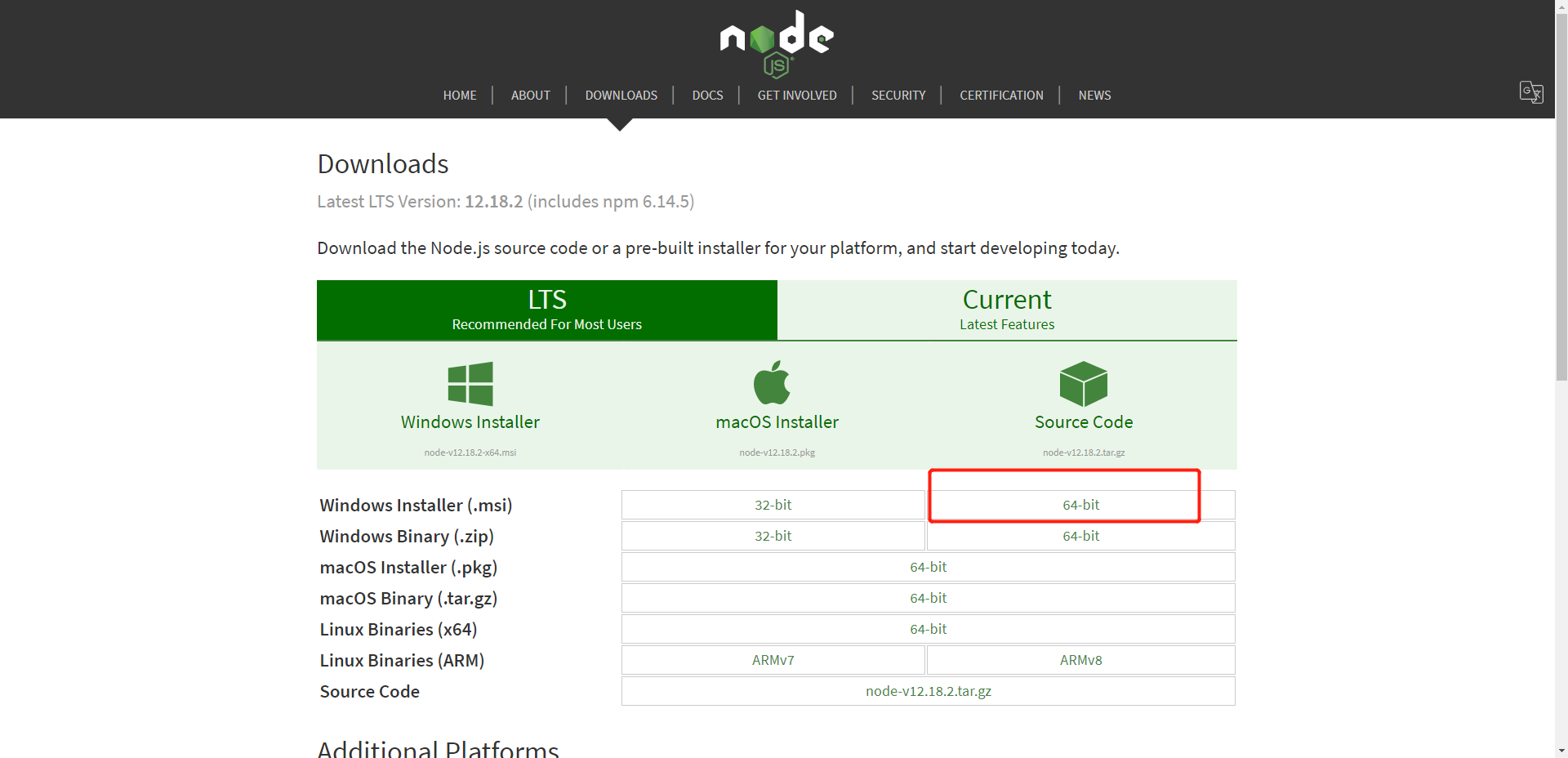
下载之后一直点下一步就可以了
确定安装成功
- cmd下输入
node -v,查看是否打印出版本号即可 - cmd下输入
npm -v,查看是否打印出版本号即可
- cmd下输入
安装Node.js 淘宝镜加速器(cnpm)
# -g 就是全局安装
npm install cnpm -g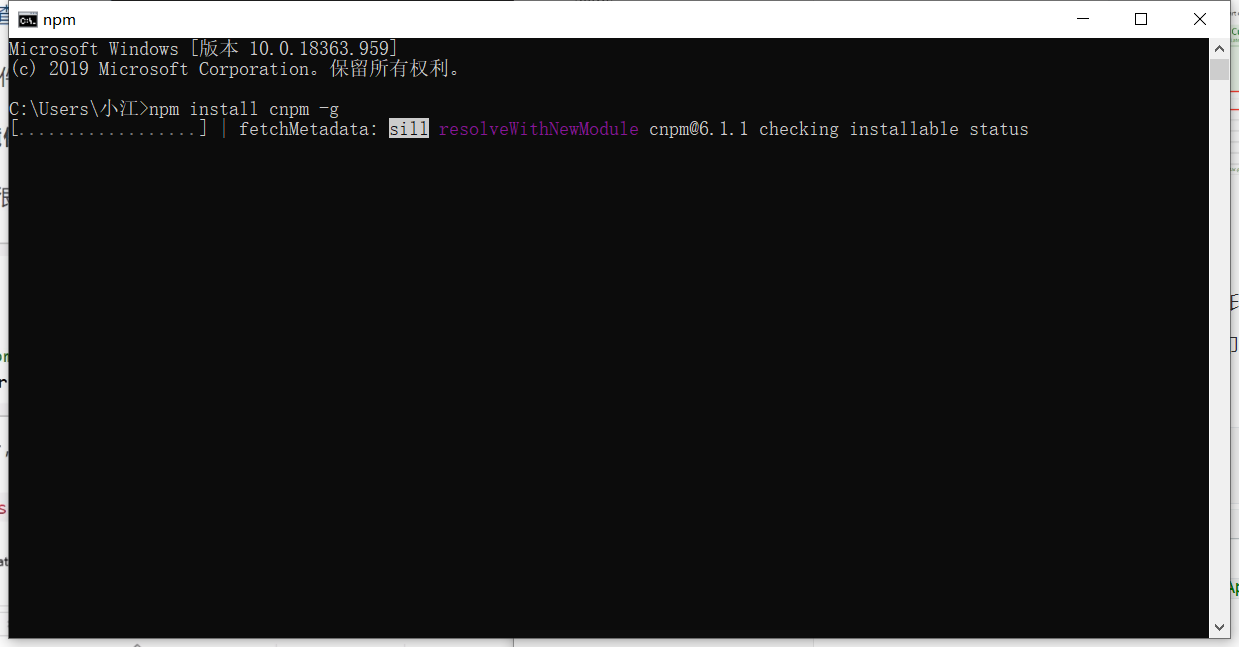
安装的位置:C:\Users\Administrator\AppData\Roaming\npm

安装vue-cli
cnpm install vue-cli -g

# 测试是否安装成功
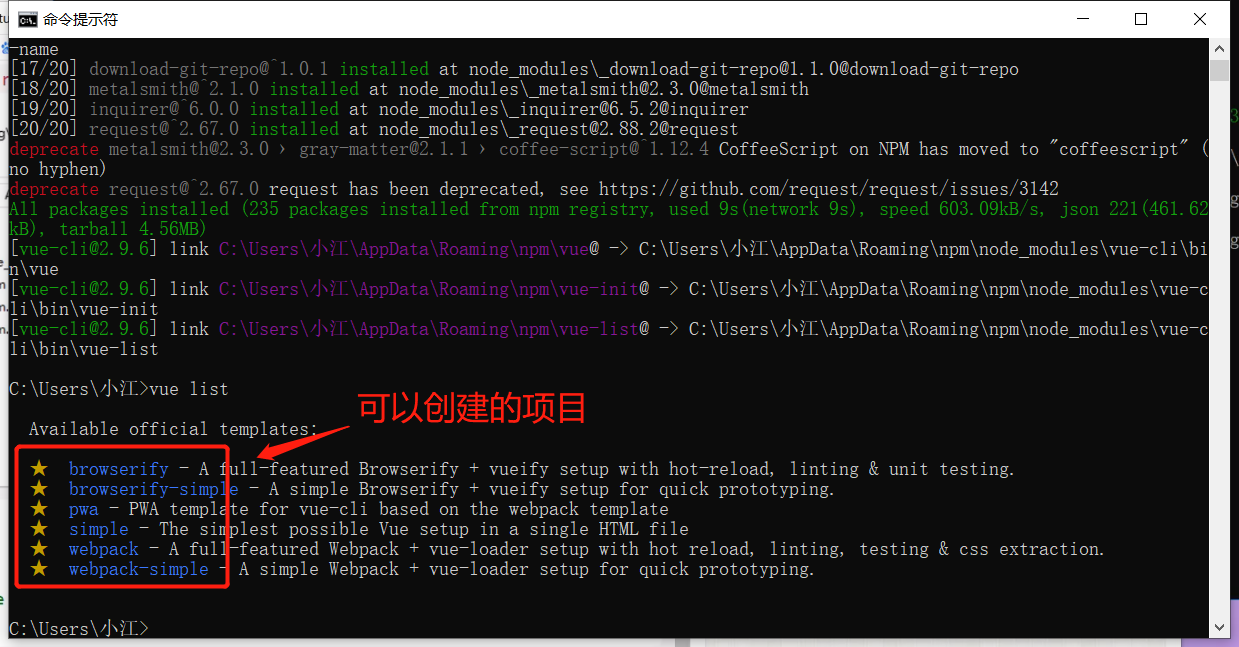
#查看可以基于哪些模板创建 vue应用程序,通常我们选择webpack
vue list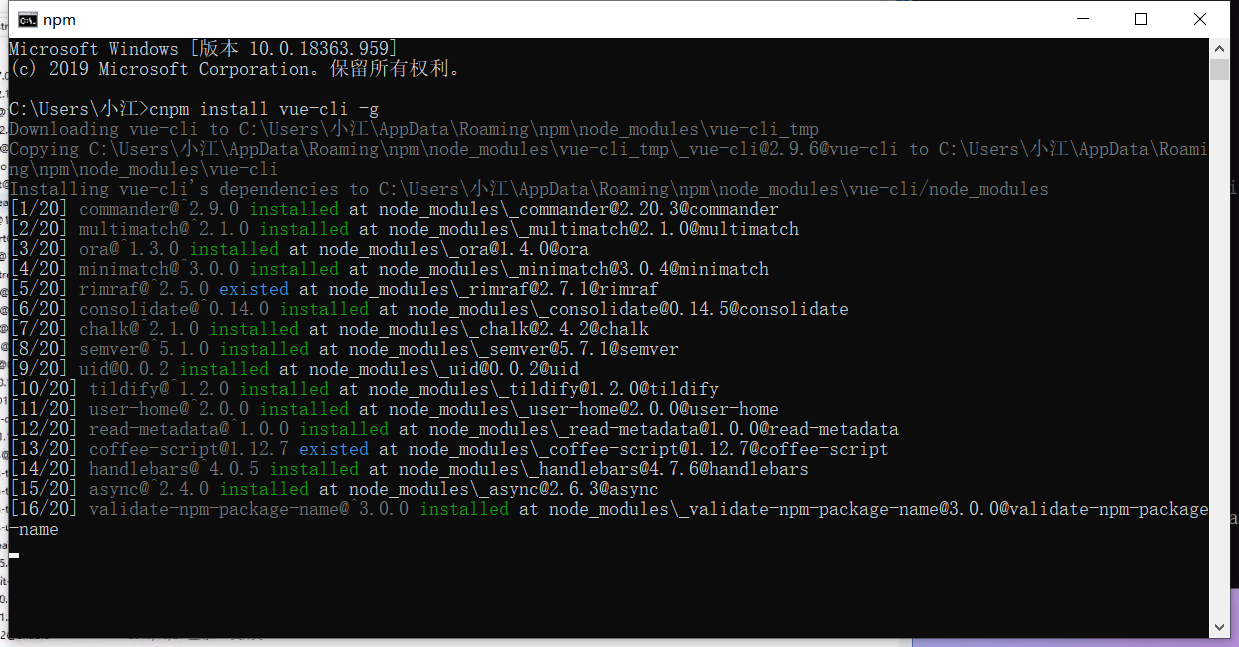
3、第一个vue-cli应用程序
3.1、安装vue-cli
创建一个空文件夹
D:\project\vue-study创建一个基于webpack模板的vue应用程序
# 这里的 myvue 是项目名,可以根据自己的需求起名
vue init webpack myvue
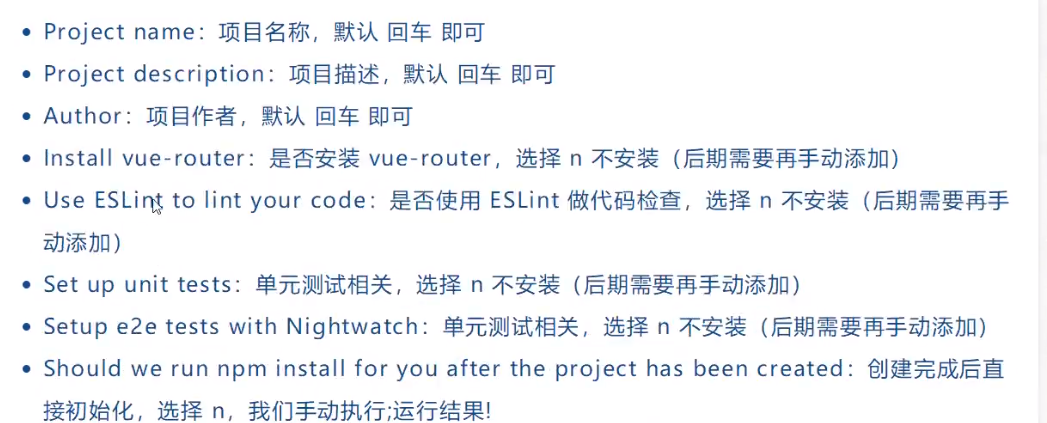
然后一直选择no
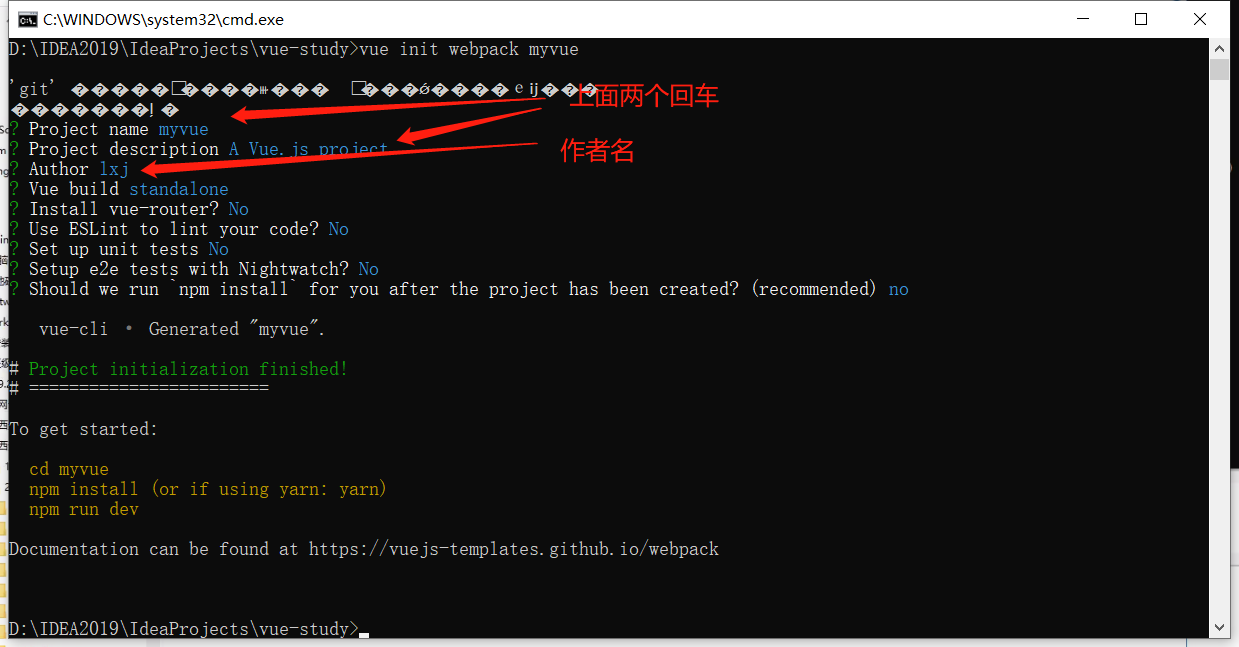
参数说明:
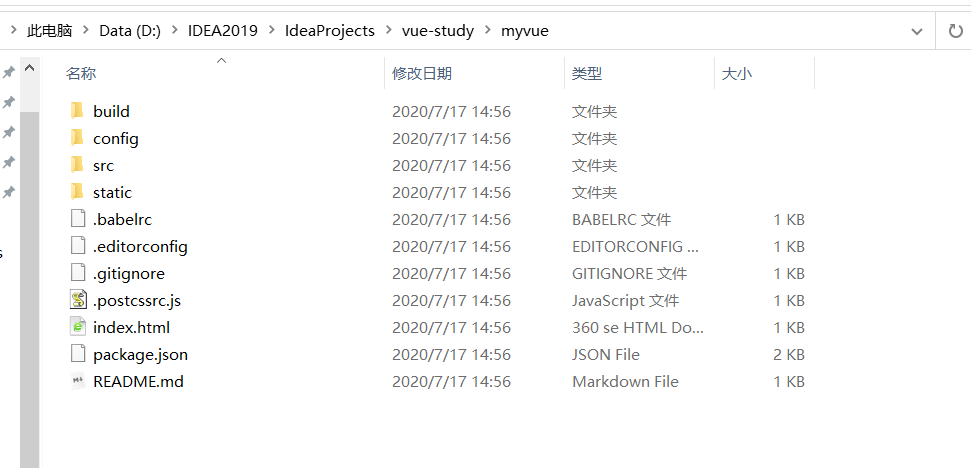
完成之后会在文件夹下面产生如下文件
初始化并运行
cd myvue #进入项目路径
npm install    #安装环境
npm run dev #启动项目
进行安装环境

修复错误
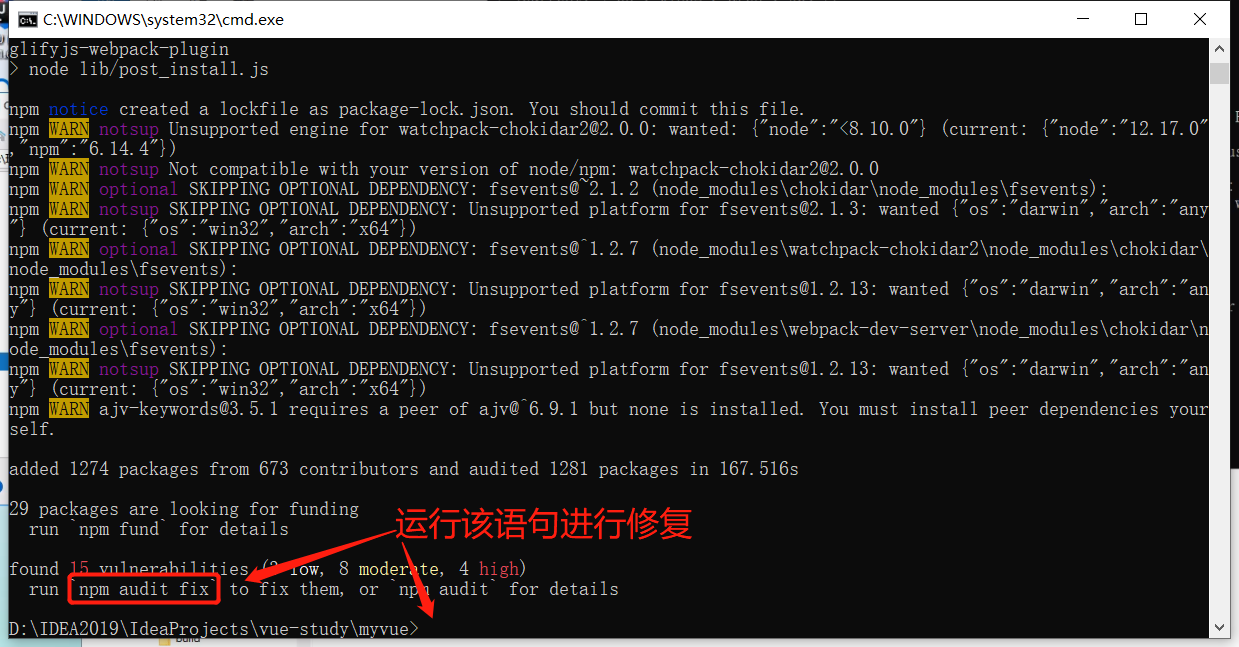
安装完成之后,发现目录下多了
node_modules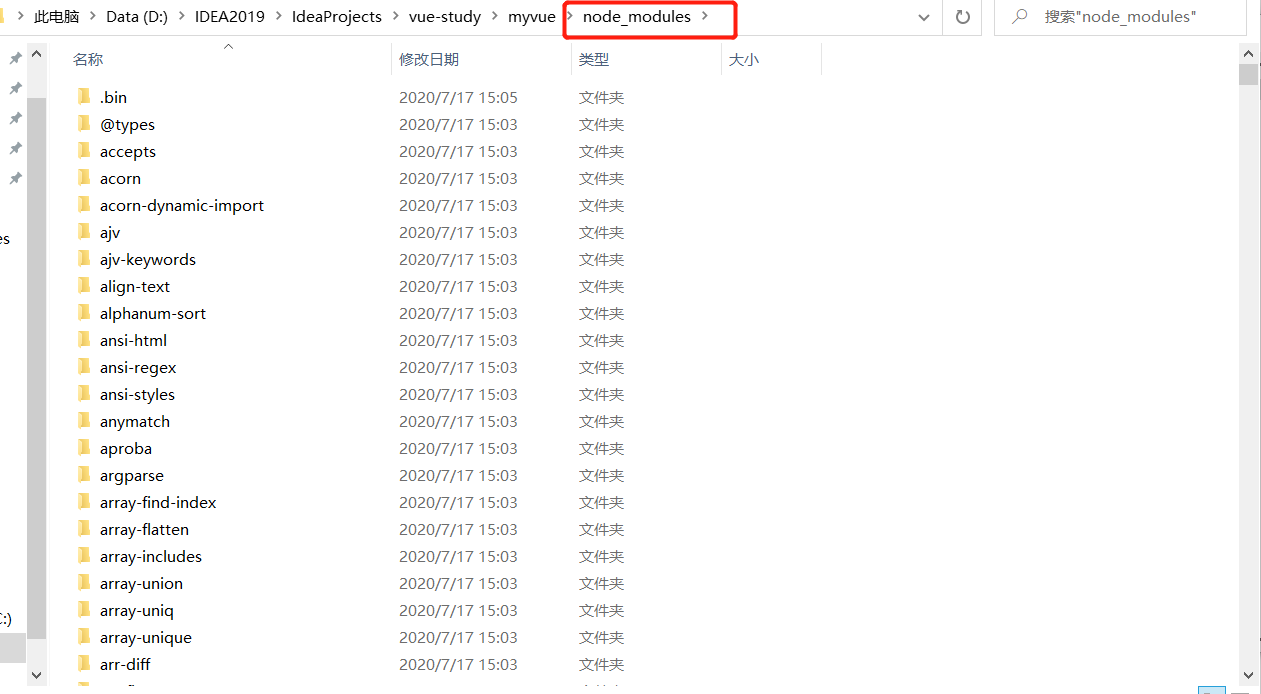
启动项目输入
npm run dev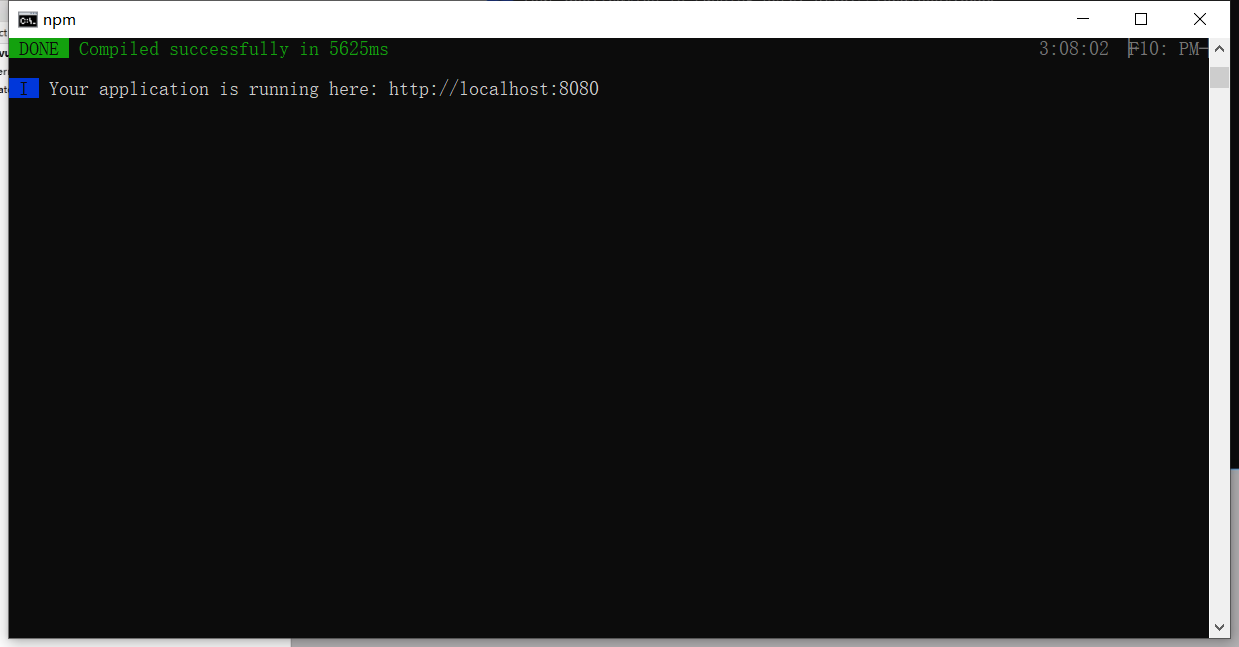
在浏览器输入
http://localhost:8080/访问正常即可(类似Tomcat)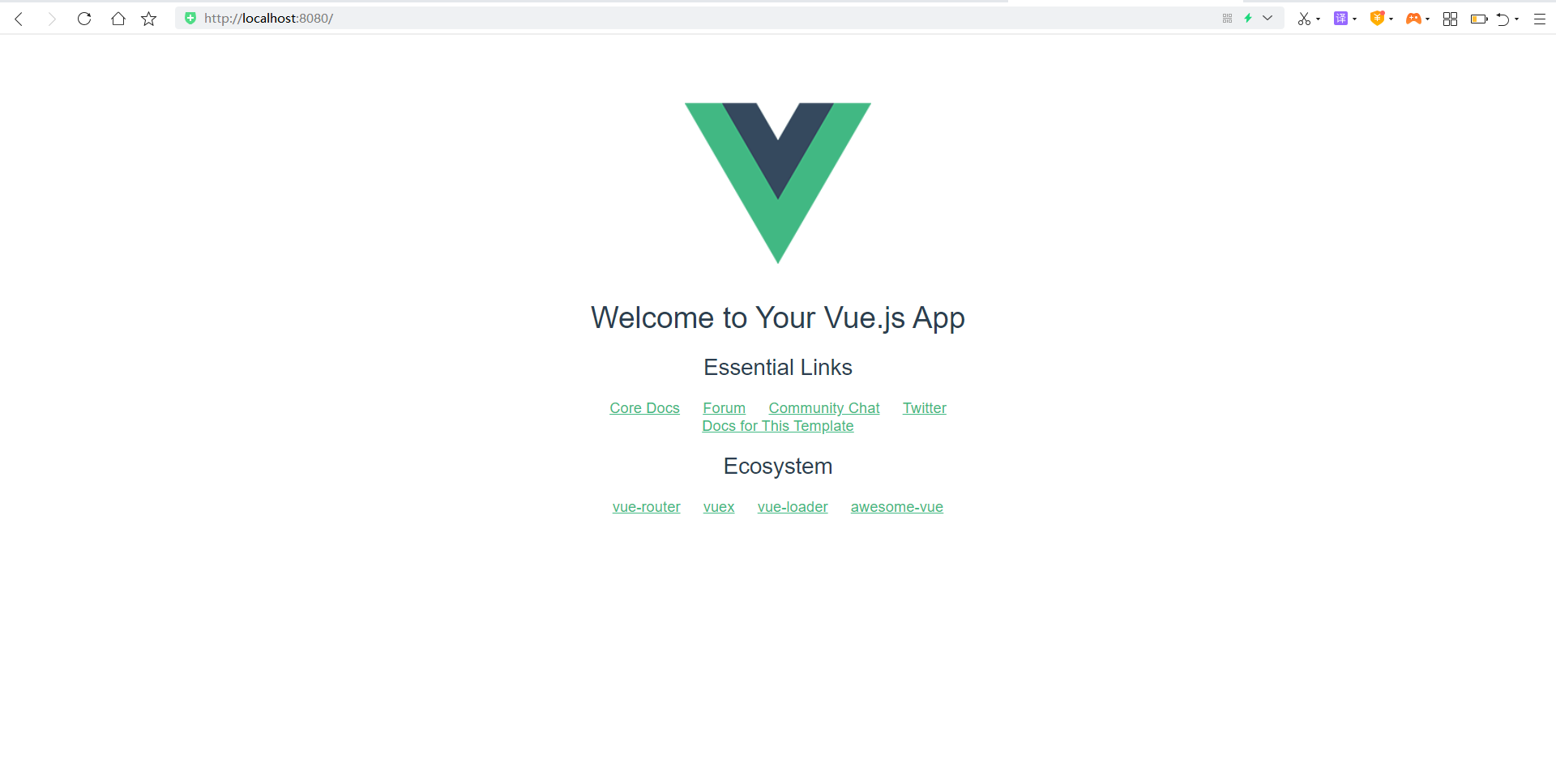
停止项目运行
在命令窗口
ctrl + c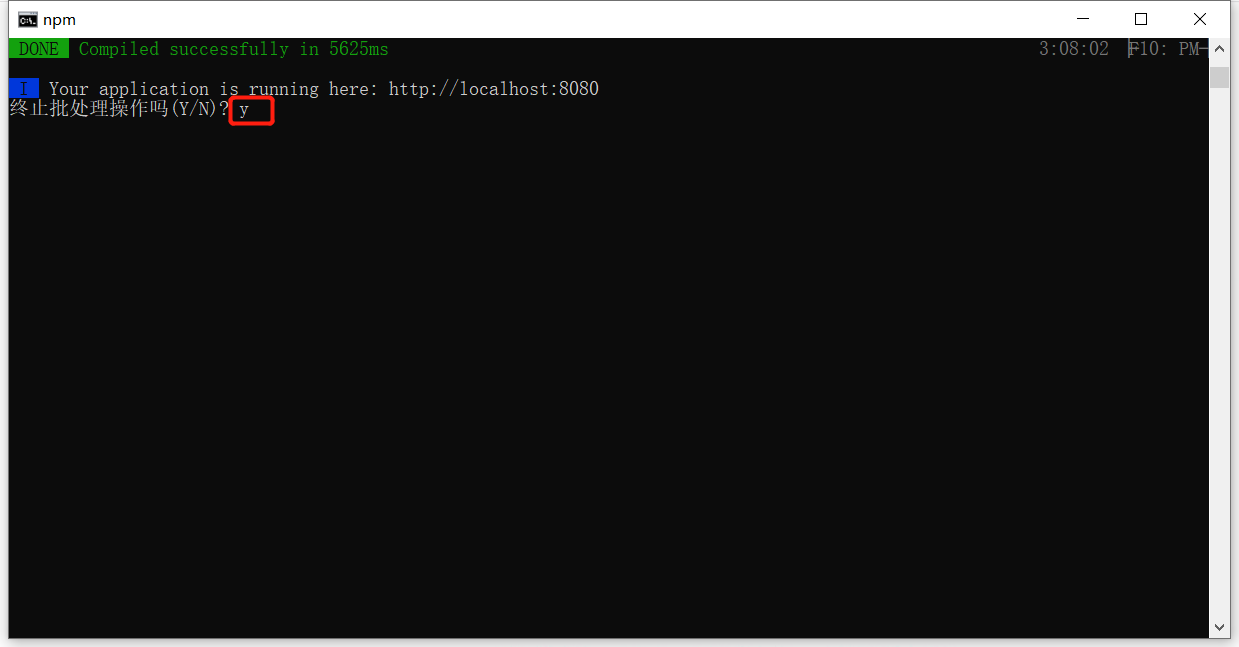
3.2、在IDEA中的使用
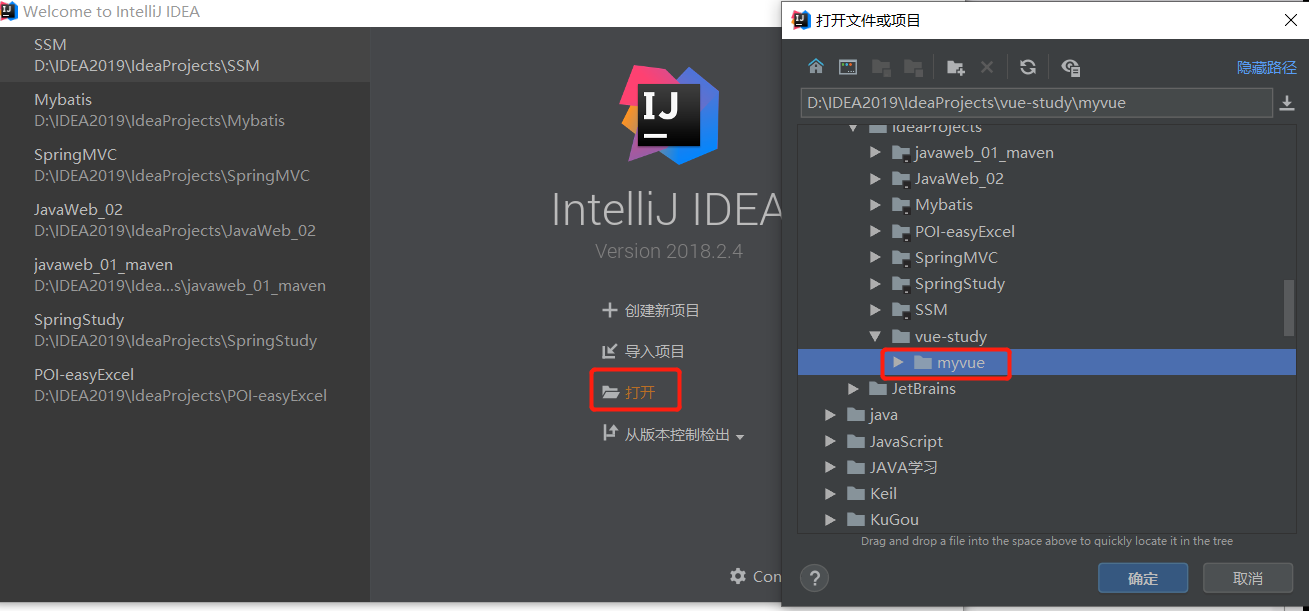
使用IDEA打开项目
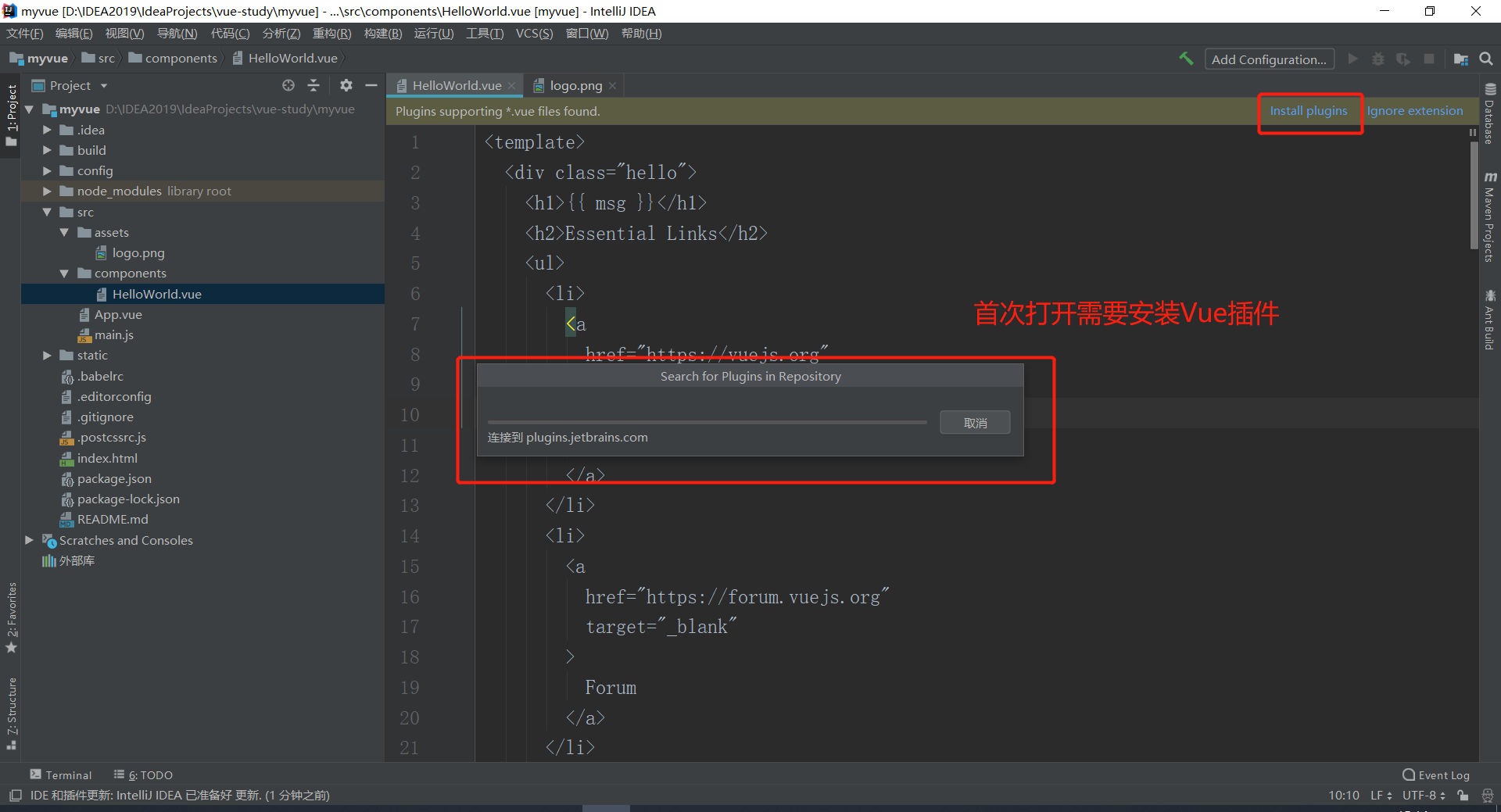
安装Vue插件(也可以直接在设置中安装)
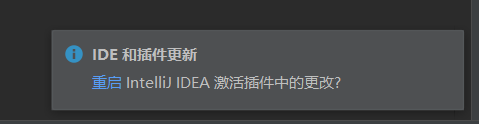
安装完成之后需要进行重启
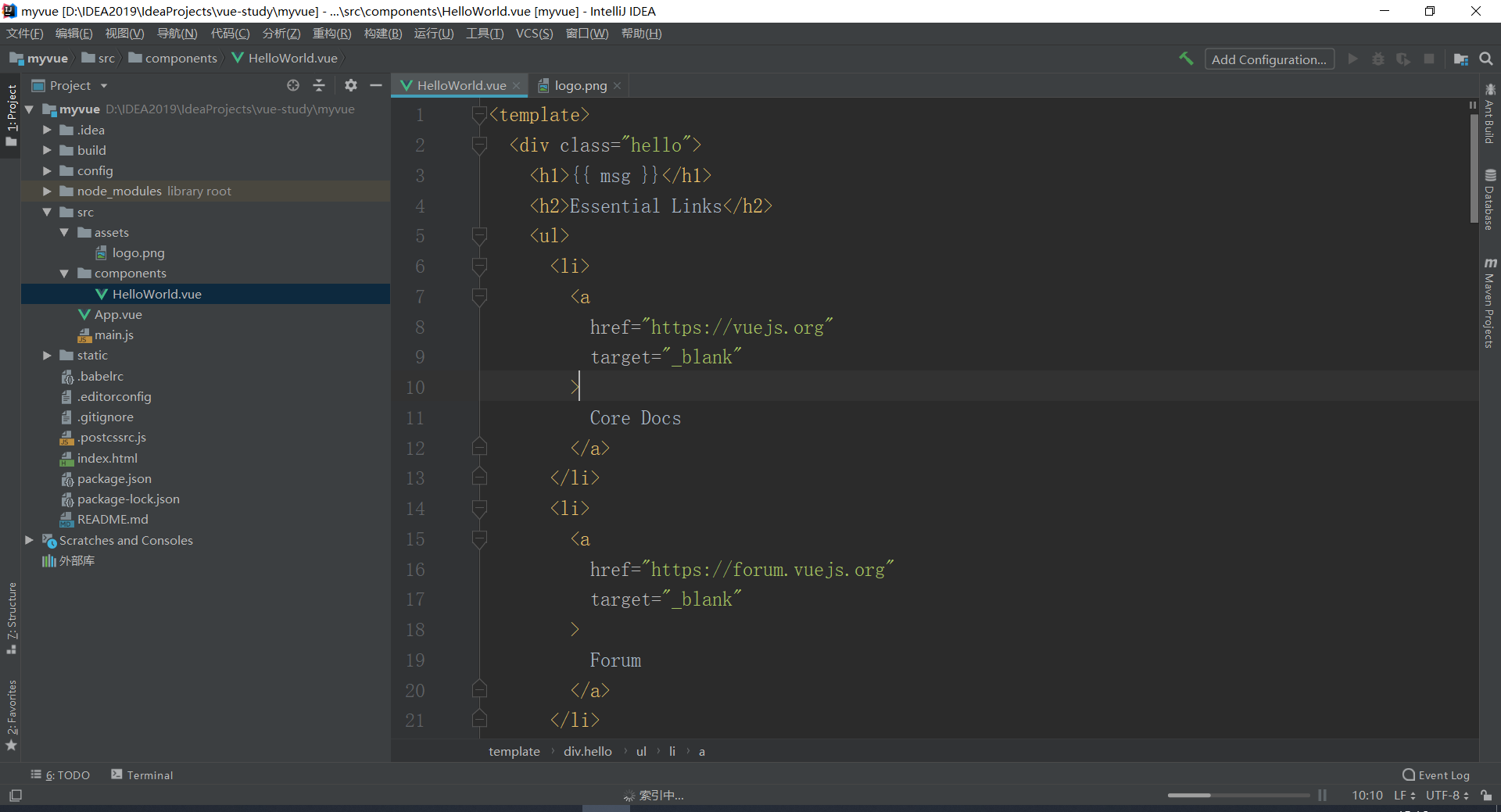
现在可以正常访问Vue项目了
在IDEA中启动Vue项目
单击下方
Terminal命令窗口,输入指令npm run dev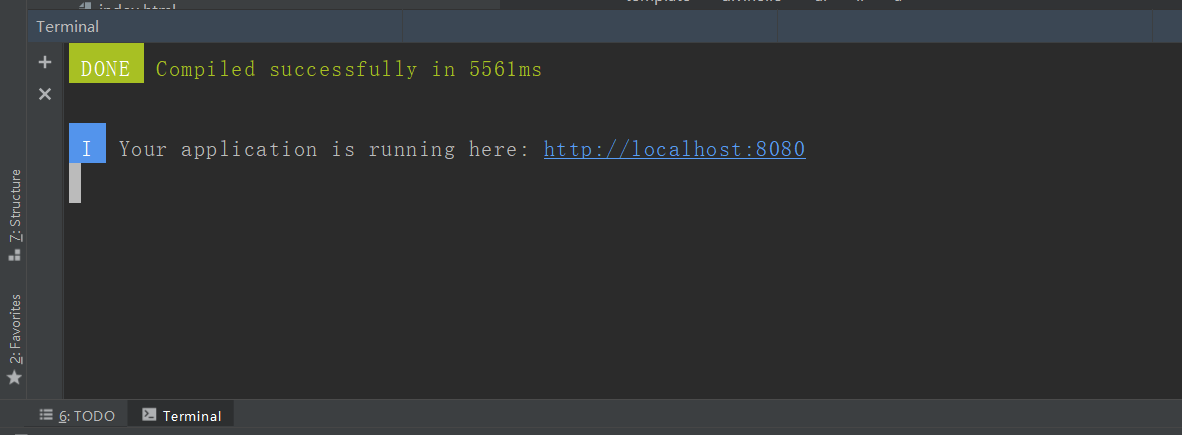
(由于在安装Vue的时候我没有使用管理员模式,所以在这里就可以启动成功了,不需要以管理员身份打开)
如果不能正常运行说明全限不够,需要设置以管理员身份运行,修改IDEA的默认打开方式
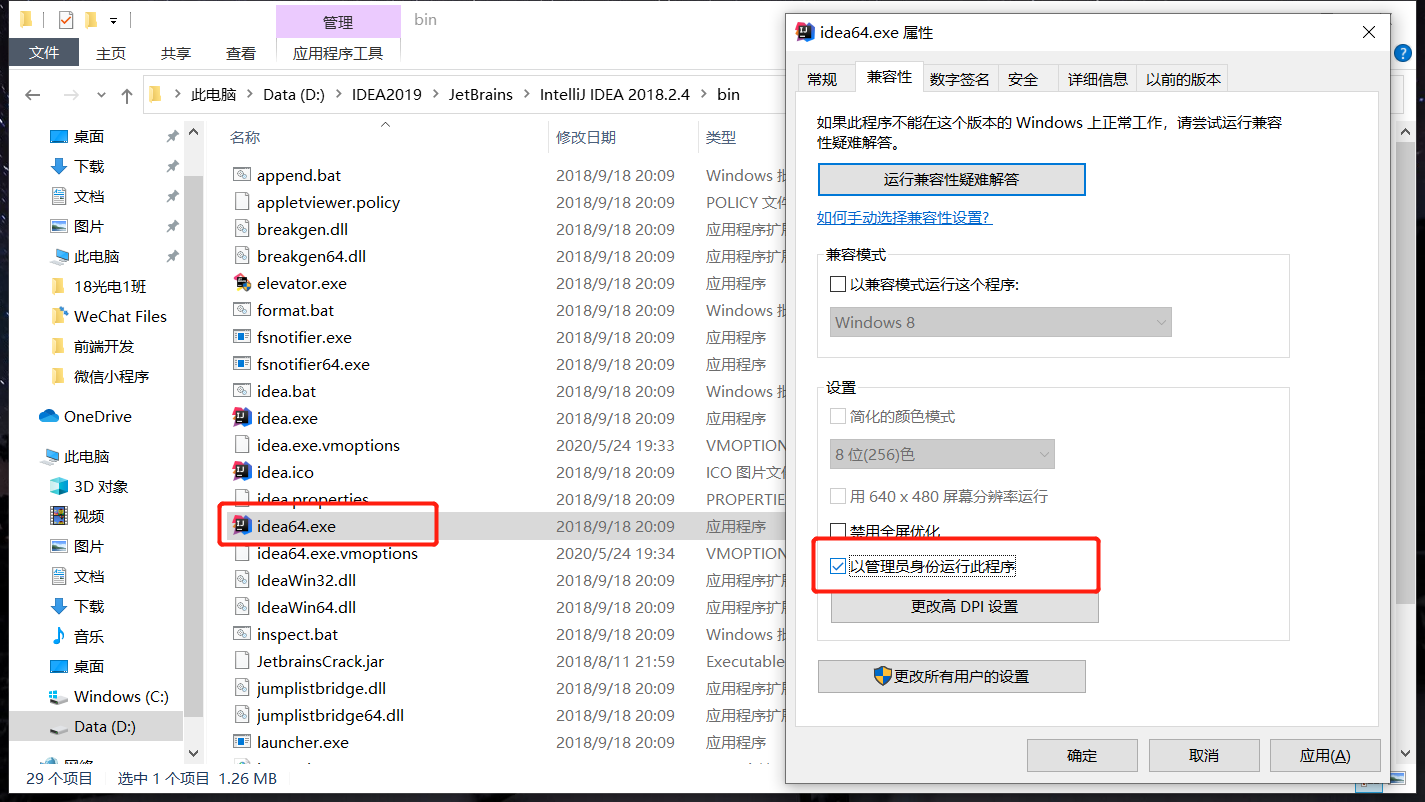
3.3、修改原有的Vue项目代码
修改原有的Vue项目代码
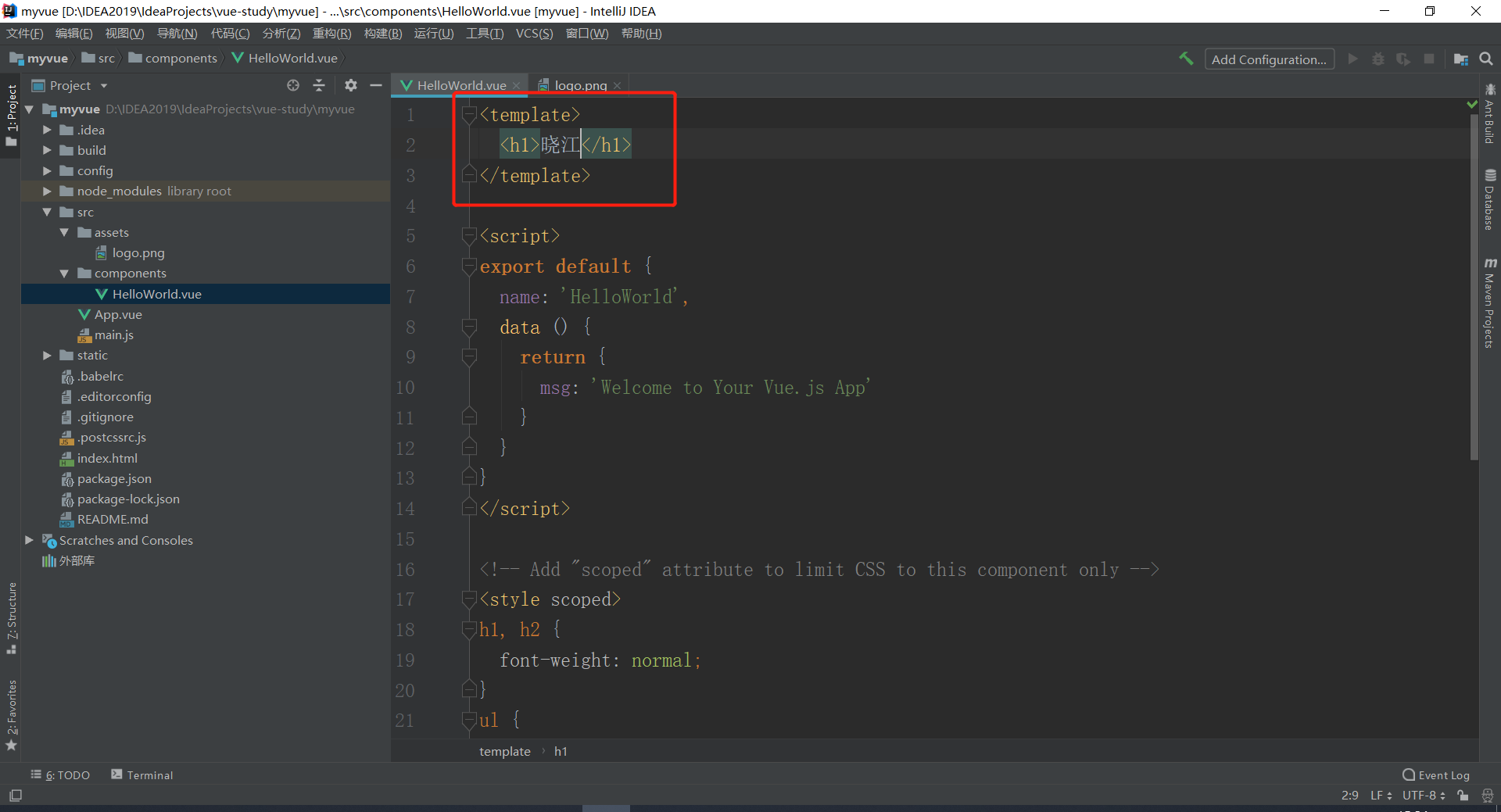
查看效果
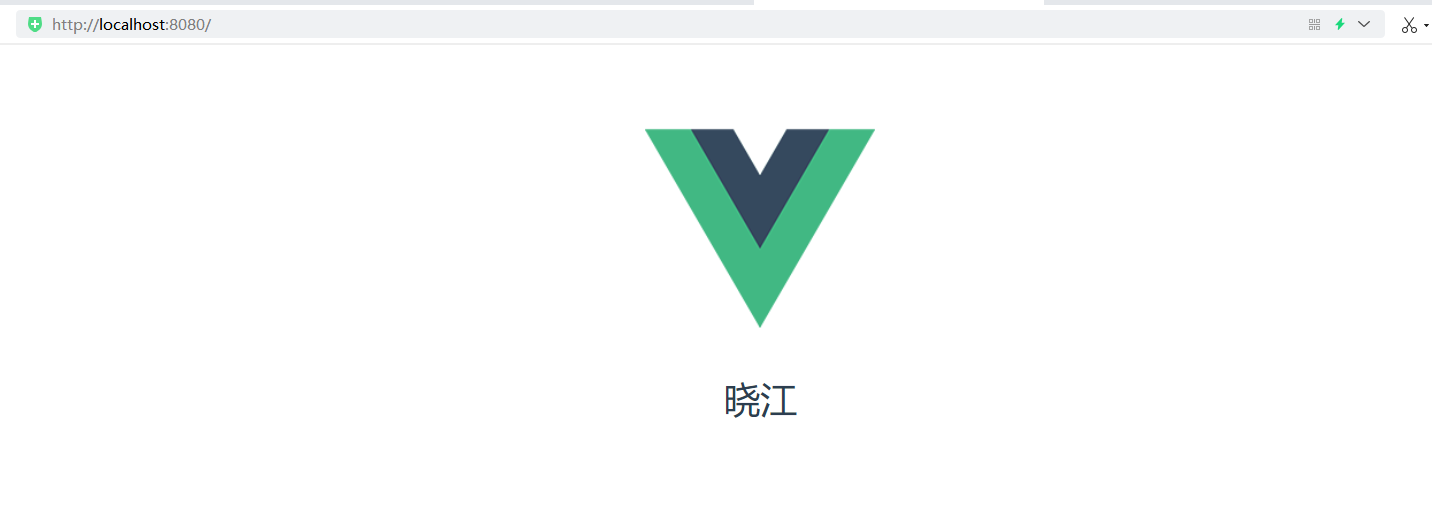
修改路径端口,在
confi文件夹下的index.js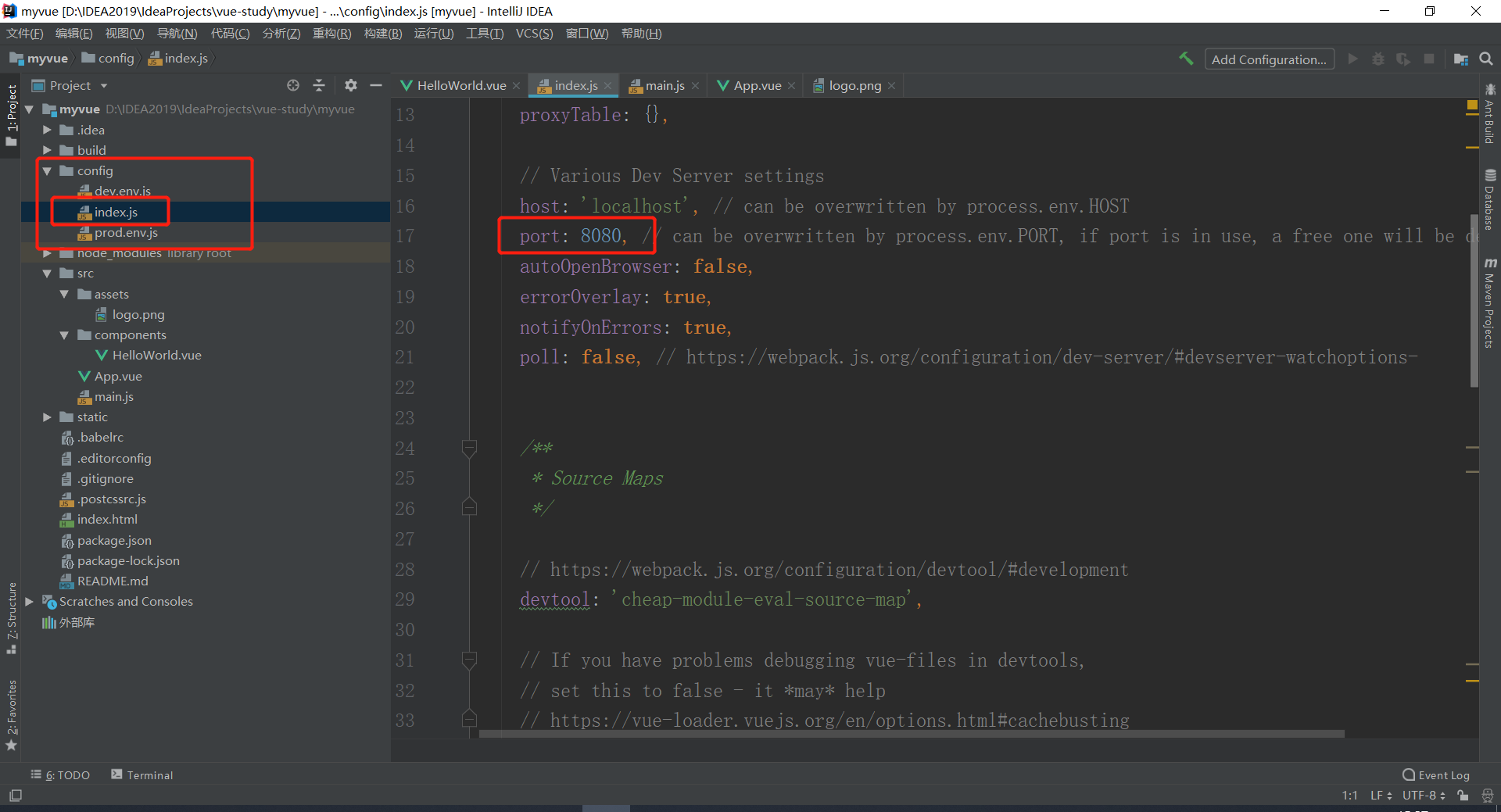
主页面
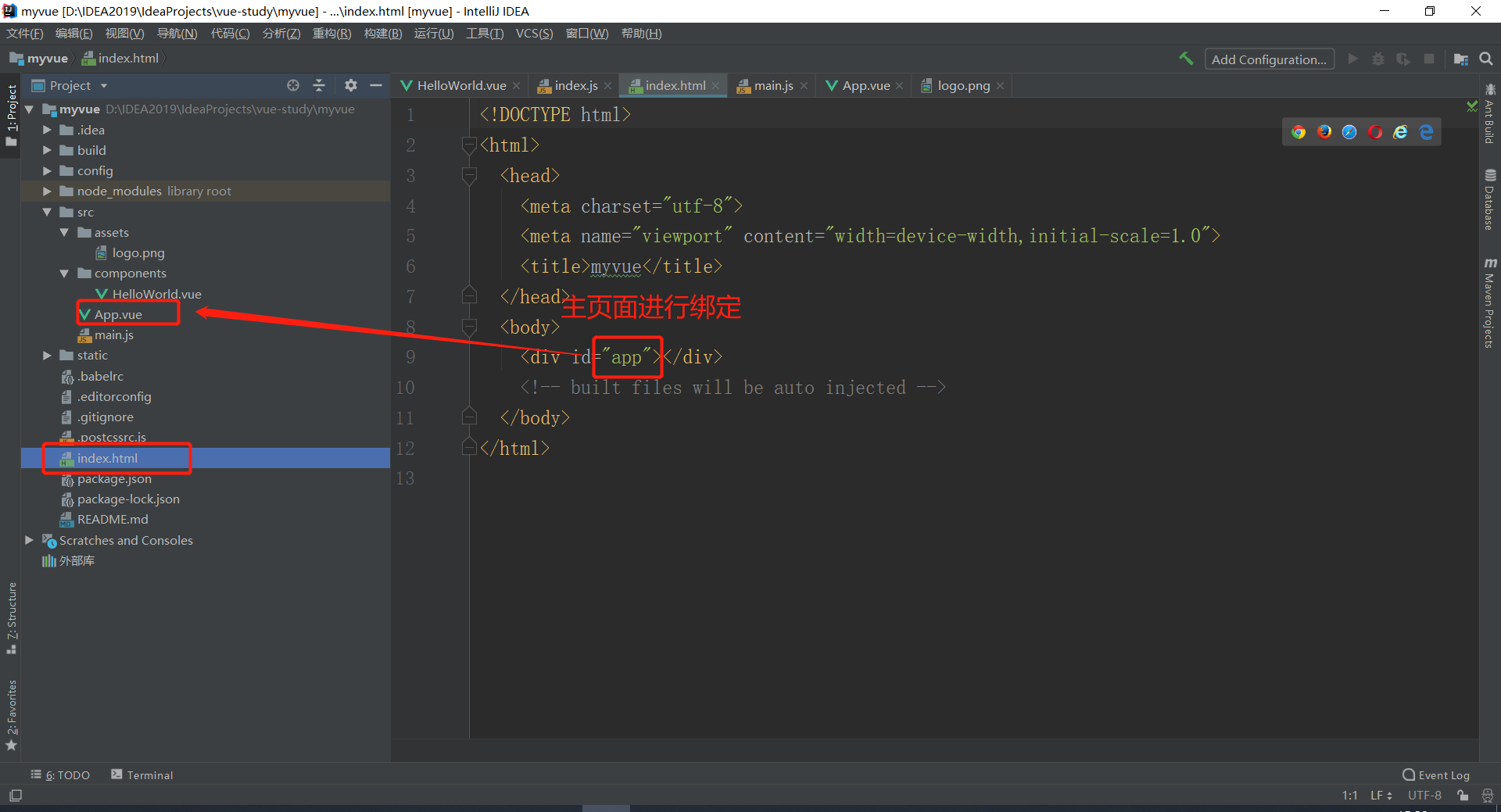
4、Vue:Webpack学习
在开发的时候,需要将IDEA的
JavaScript设置为ES6
4.1、ES6简介
EcmaScript6标准增加了JavaScript语言层面的模块体系定义。ES6模块的设计思想,是尽量静态化,使编译时就能确定模块的依赖关系,以及输入和输出的变量。
import "jquery";
export function doStuff(){ }
module "localModule"{ }
'use strict'使用严格检查,增加了对代码的规范
4.2、安装Webpack
一款模块加载器兼打包工具,能将各种资源,如JS、JSX、ES6、SASS、LESS、图片等都作为模块来处理和使用,解决兼容问题
安装:
npm install webpack -g
npm install webpack-cli -g
测试安装成功:
webpack -vwebpack-cli -v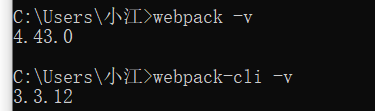
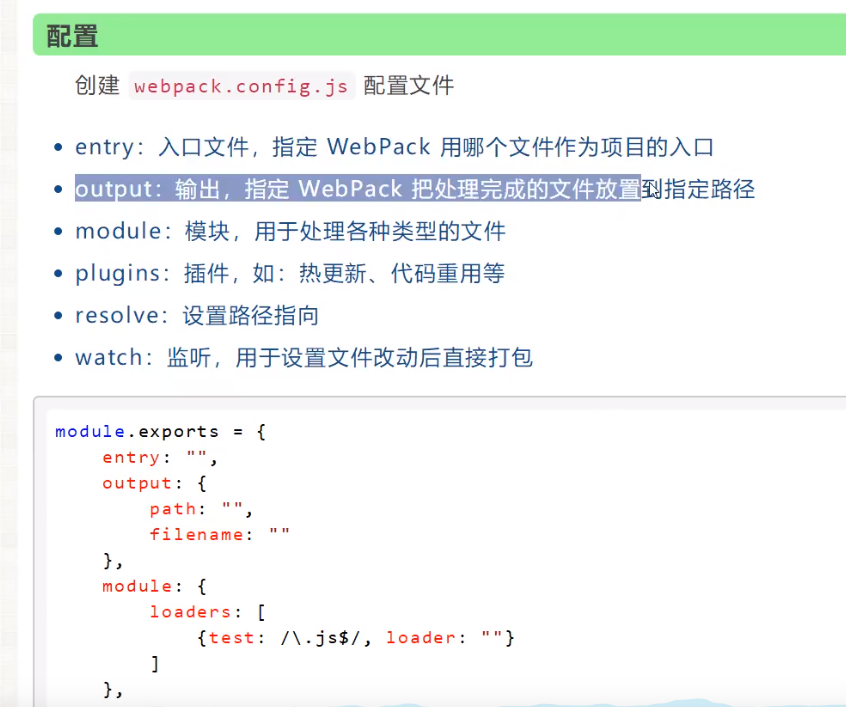
4.3、使用webpack
创建项目
新建文件夹,然后用IDEA打开
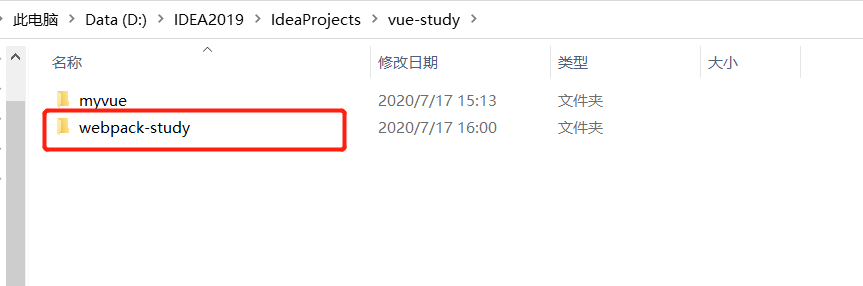
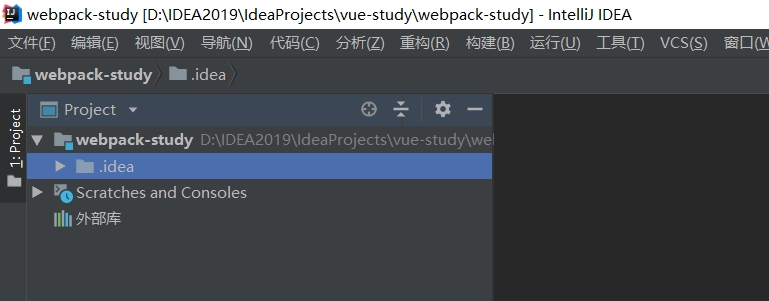
创建一个名为modules的目录,用于放置JS模块等资源文件
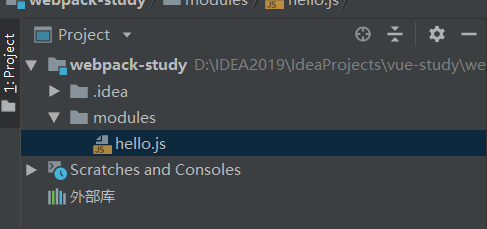
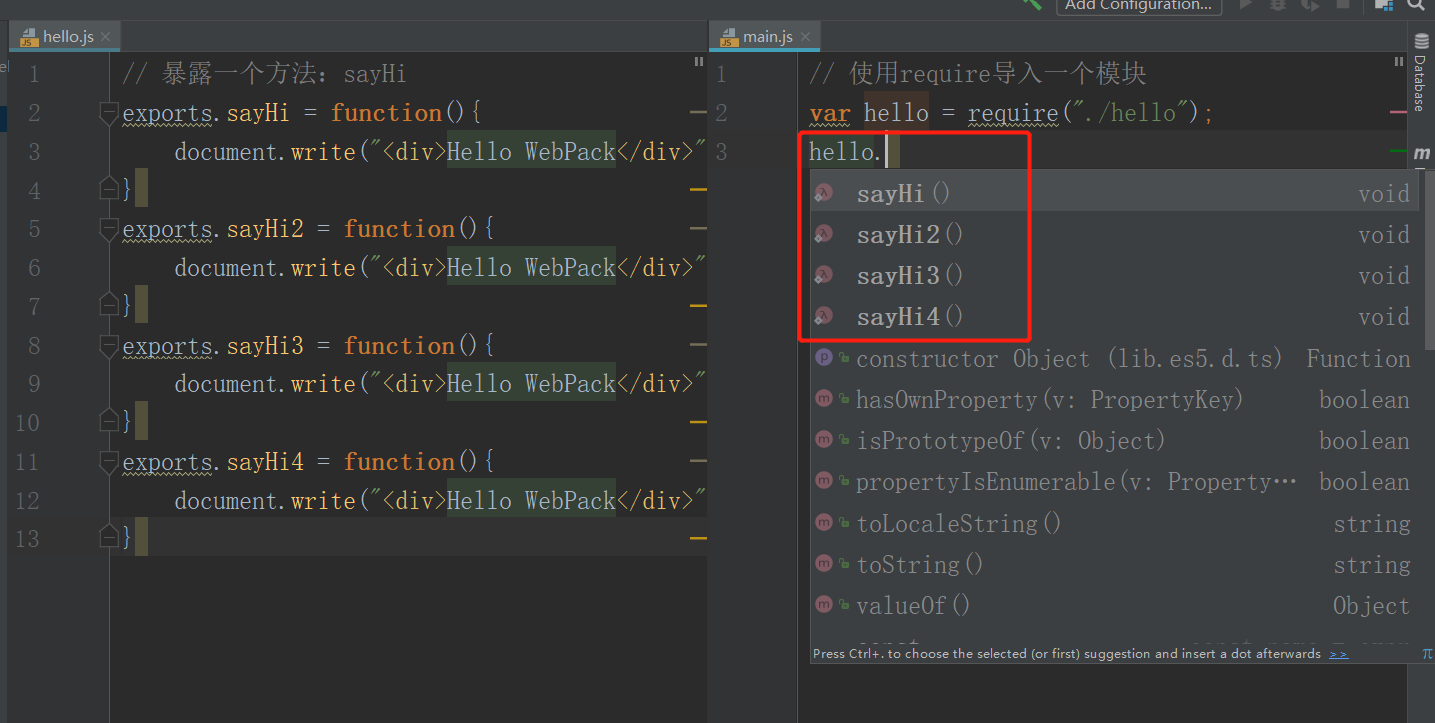
在modules下创建模块文件,如hello.js,用于编写JS模块相关代码
// 暴露一个方法:sayHi
exports.sayHi = function(){
    document.write("<div>Hello WebPack</div>");
}
在modules下创建一个名为 main.js 的入口文件,用于打包时设置entry属性
// require 导入一个模块,就可以调用这个模块中的方法
var hello = require("./hello");
hello.sayHi():
导入之后就可以使用hello.js中暴露的方法
在项目目录下创建webpack.config.js 配置文件,使用webpack 命令打包
module.exports = {
    // 程序入口
    entry: "./modules/main.js",
    // 输入到哪
    output: {
        // 标准写法
        filename: "./js/bundle.js"
    }
}
启动打包,在IDEA的命令窗口输入
webpack然后就报错了(因为之前代码中的module和output拼写错误)
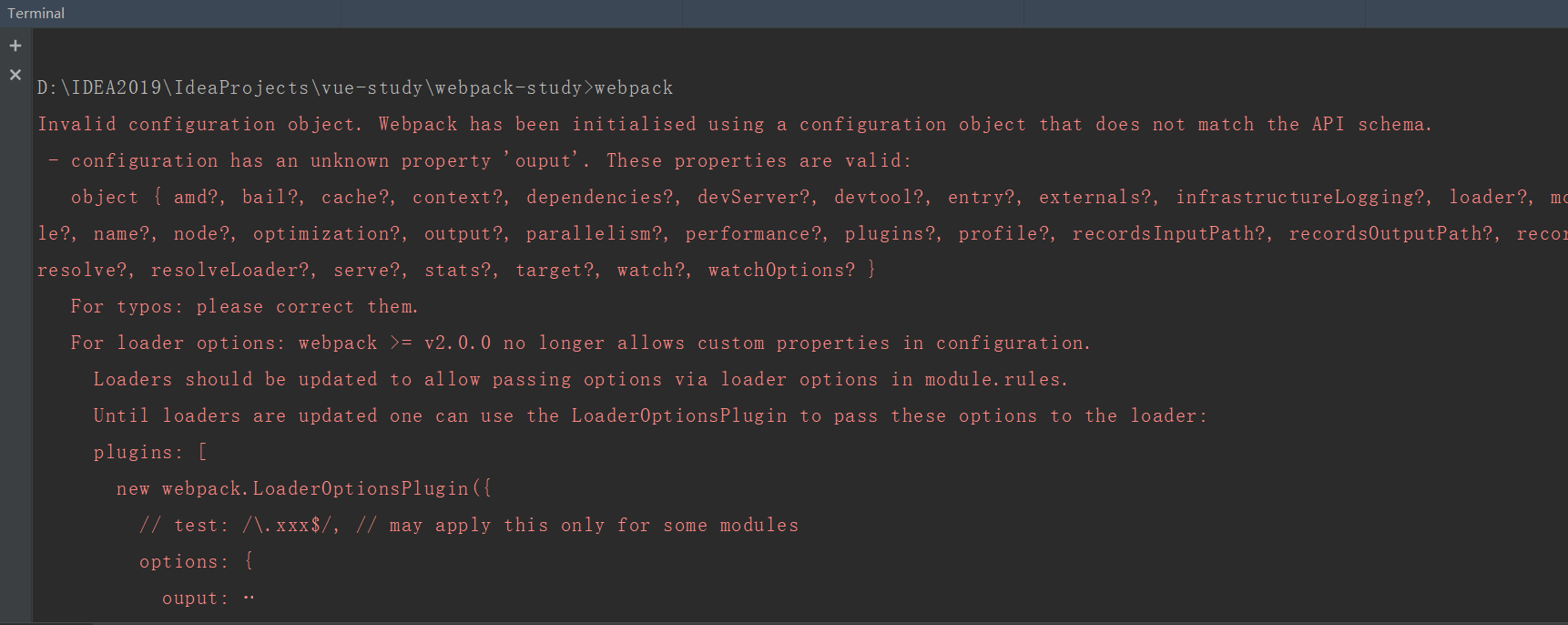
修改之后
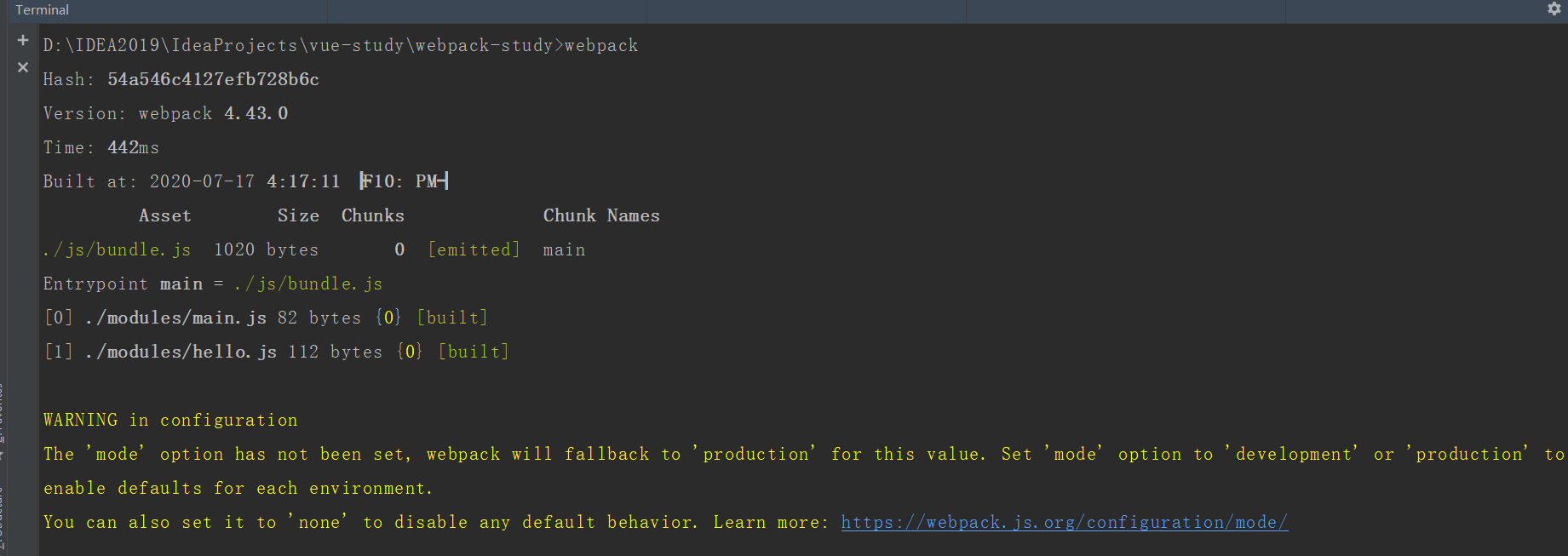
打包之后多出了一个
dist文件夹,将代码进行压缩成一个js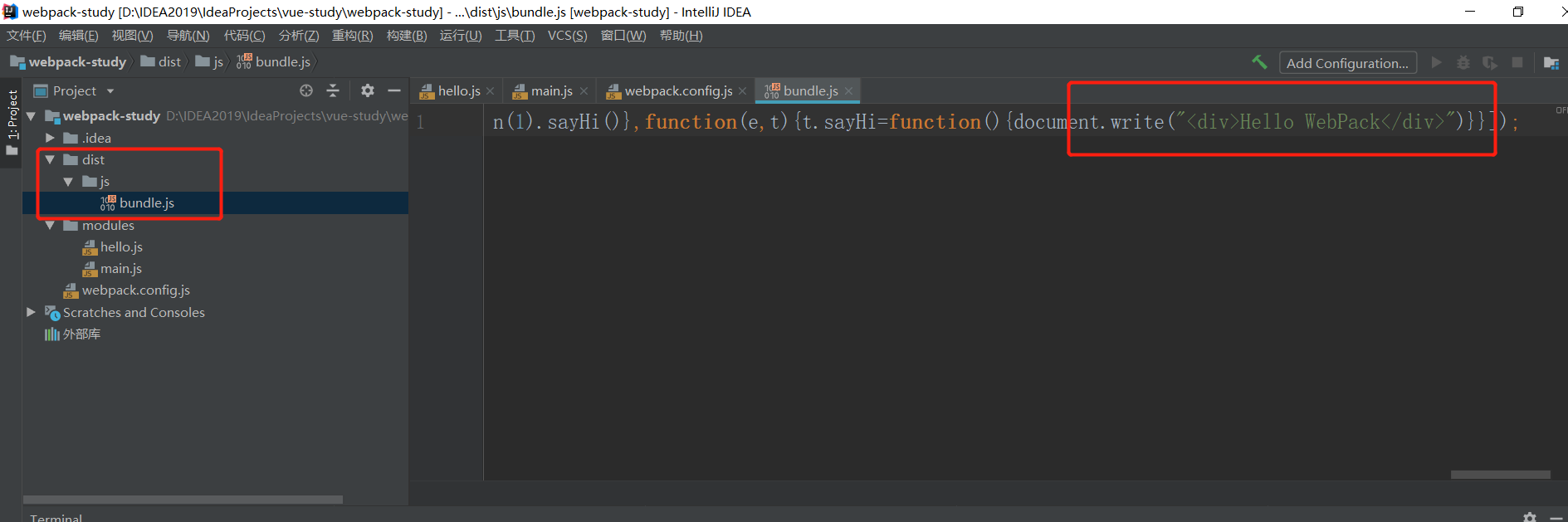
新建index.html,进行测试
<!DOCTYPE html>
<html lang="en">
<head>
    <meta charset="UTF-8">
    <title>Title</title>
</head>
<body>

<script src = "dist/js/bundle.js"></script>

</body>
</html>
打开页面测试
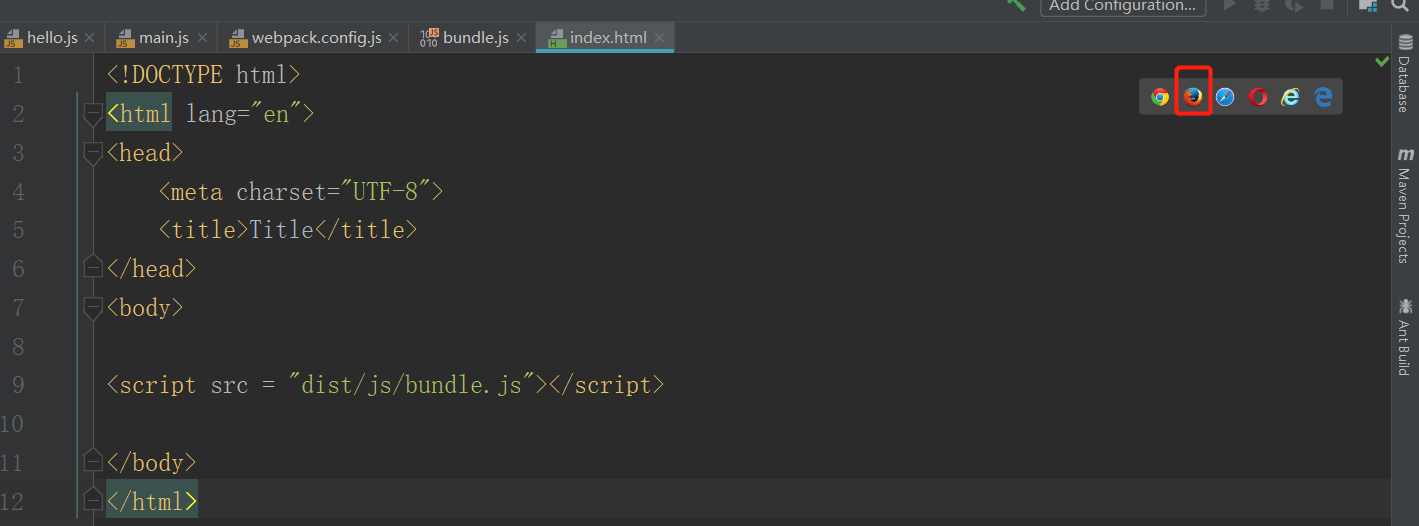

因此之后的html代码只需要导入即可(模块化开发)
可以使用
webpack --watch进行监听变化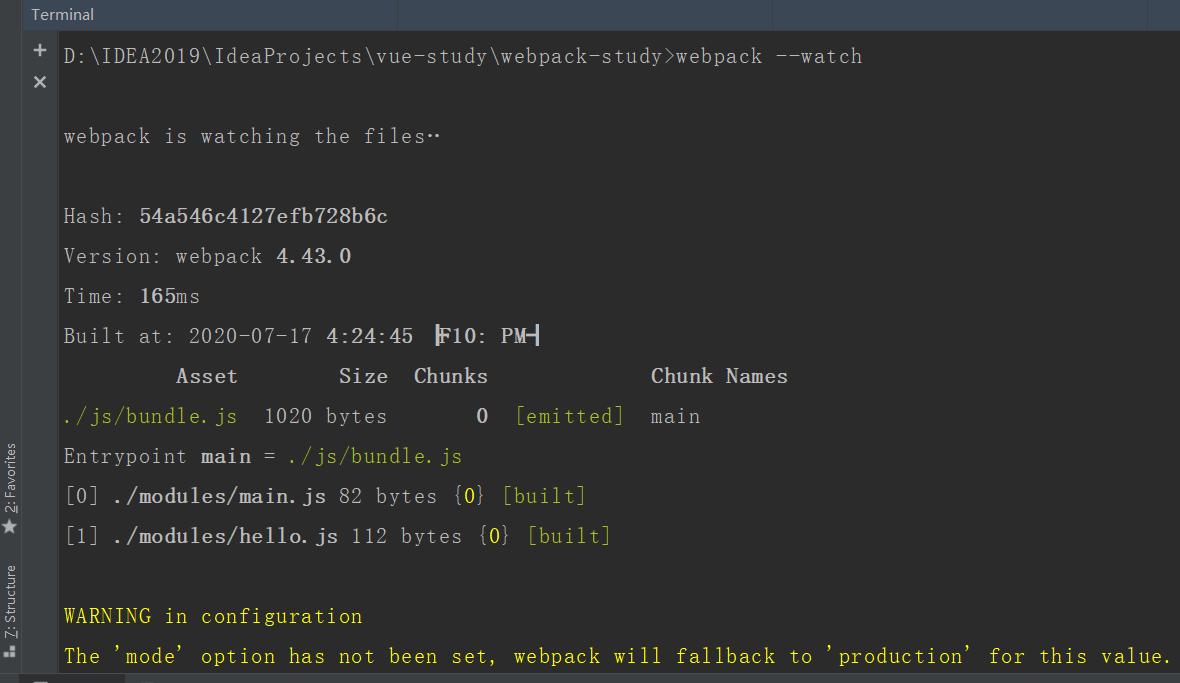
停止Vue,
ctrl + c,然后输入y回车
5、Vue:vue-router路由
Vue Router是Vue.js的官方路由器。它与Vue.js核心深度集成,使使用Vue.js轻松构建单页应用程序变得轻而易举。功能包括:
- 嵌套路线/视图映射
- 模块化,基于组件的路由器配置
- 路由参数,查询,通配符
- 查看由Vue.js过渡系统提供动力的过渡效果
- 细粒度的导航控制
- 与自动活动CSS类的链接
- HTML5历史记录模式或哈希模式,在IE9中具有自动备用
- 可自定义的滚动行为
5.1、安装vue-router插件
npm install vue-router --save-dev打开一开始创建的
myvue项目清理项目
删除
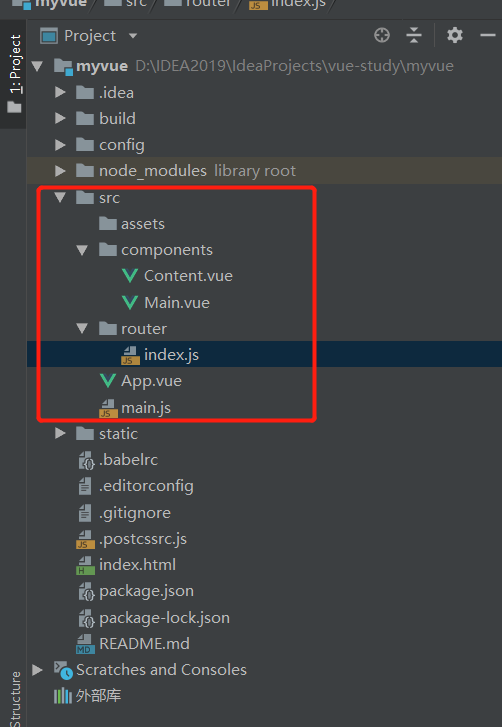
src下的文件,只保留App.vue和main.js删除之后的文件
App.vue<template> <div id="app"> </div> </template> <script> export default { name: 'App' } </script> <style> #app { font-family: 'Avenir', Helvetica, Arial, sans-serif; -webkit-font-smoothing: antialiased; -moz-osx-font-smoothing: grayscale; text-align: center; color: #2c3e50; margin-top: 60px; } </style>main.jsimport Vue from 'vue' import App from './App' Vue.config.productionTip = false; /* eslint-disable no-new */ new Vue({ el: '#app', components: { App } , template: '<App/>' } )安装插件
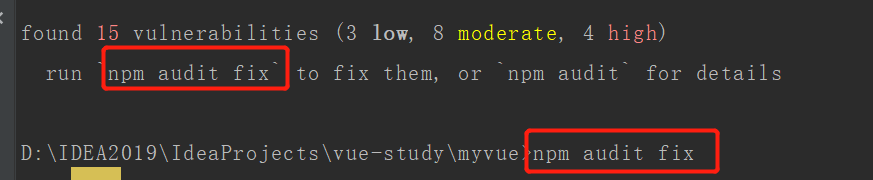
npm install vue-router --save-dev必须在当前项目下安装(这里在IDEA中安装,相当于导入jar包)

遇到问题就进行修复
安装之后进行导入
import Vue from 'vue'
import App from './App'
import VueRouter from 'vue-router'

// 显示声明使用VueRouter
Vue.use(VueRouter);
进行启动测试
npm run dev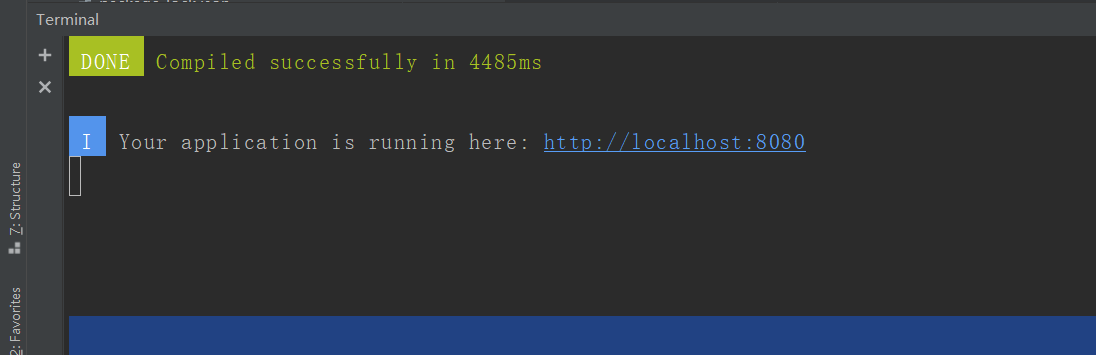
修改App.vue文件后保存,页面数据会自动刷新(热刷新)

5.2、路由测试
新建
content.vue文件和main.vue<template> <div> <h1>内容页</h1> </div> </template> <script> export default { name: "Content" } </script> <style scoped> </style>安装路由,在src目录下创建一个
router,专门存放路由index.jsimport Vue from "vue" import VueRouter from "vue-router" //导入刚才定义的组件 import Content from "../components/Content" import Main from "../components/Main" // 显示使用路由 Vue.use(VueRouter); // 配置导出路由 export default new VueRouter({ routes:[ { // 路由路径,相当于@RequestMapping注解 path: '/content', // 路由名称 name: 'Content', // 跳转到的组件 component: Content } ,{ // 路由路径,相当于@RequestMapping注解 path: '/main', // 路由名称 name: 'Main', // 跳转到的组件 component: Main } , ] } )在
main.js中配置路由import Vue from 'vue' import App from './App' import VueRouter from 'vue-router' // 导入上面配置的路由路径 import router from "./router" Vue.config.productionTip = false; // 显示声明使用VueRouter Vue.use(VueRouter); new Vue({ el: '#app', // 配置路由 router, components: { App } , template: '<App/>' } )在App.vue中使用路由
<template>
  <div id="app">
    <h1>Vue-Router</h1>
    <router-link to="/main">首页</router-link>
    <router-link to="/content">内容</router-link>
    <router-view></router-view>
  </div>
</template>
启动测试
npm run dev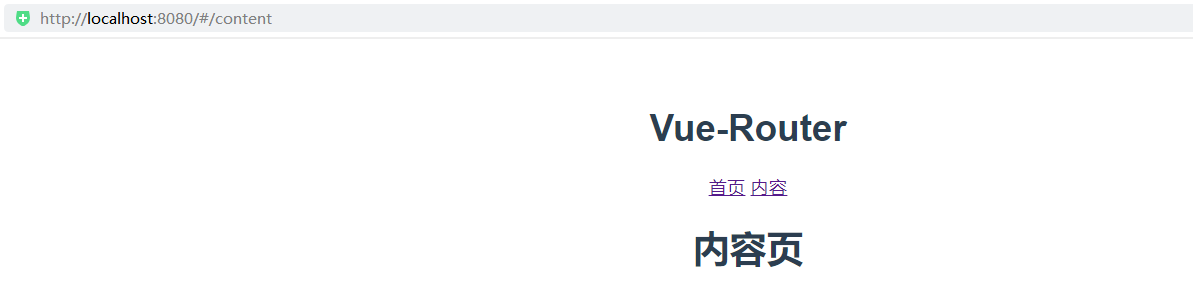
==注意:index中的配置属性名不要写错,routes不是router上次写错显示不出组件内容==
小结:
在
components中创建组件在
router中的index.js导入组件,配置组件在
App.vue中使用使用<router-link to="/content">内容</router-link> <router-view></router-view>
6、Vue:快速上手
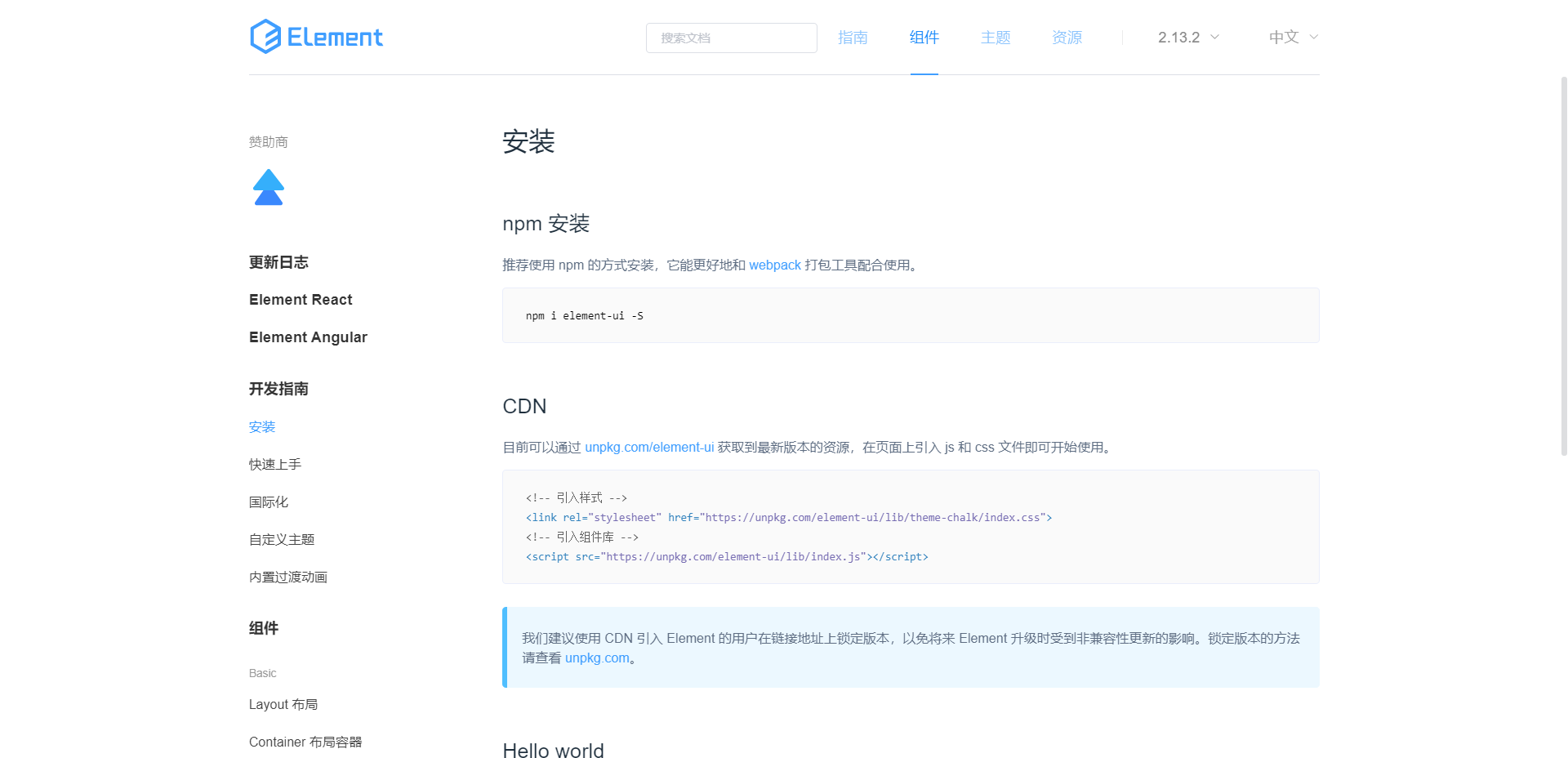
结合ElementUI:https://element.eleme.cn/#/zh-CN/component/installation
6.1、创建工程
打开命令窗口,切换到项目工作路径,在目录前面加上
cmd空格、回车(但这是管理员模式)
创建一个名为hello-vue的工程
vue init webpack hello-vue,文件不需要手动创建这时候选择第一个
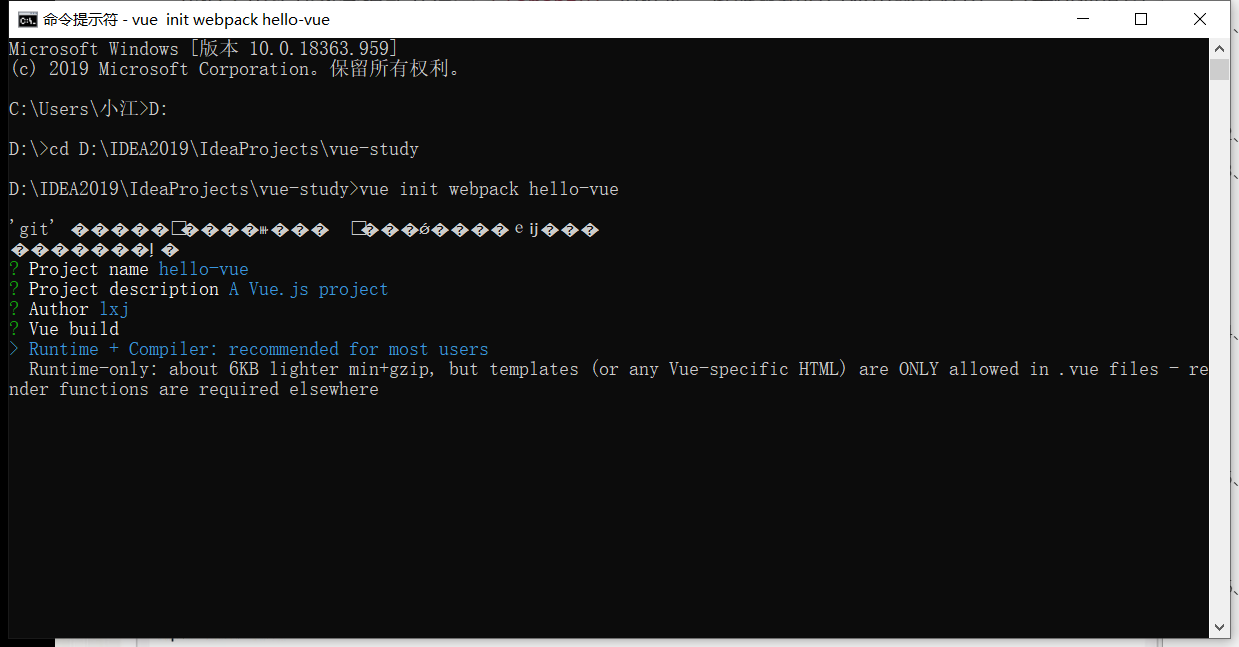
然后一直no
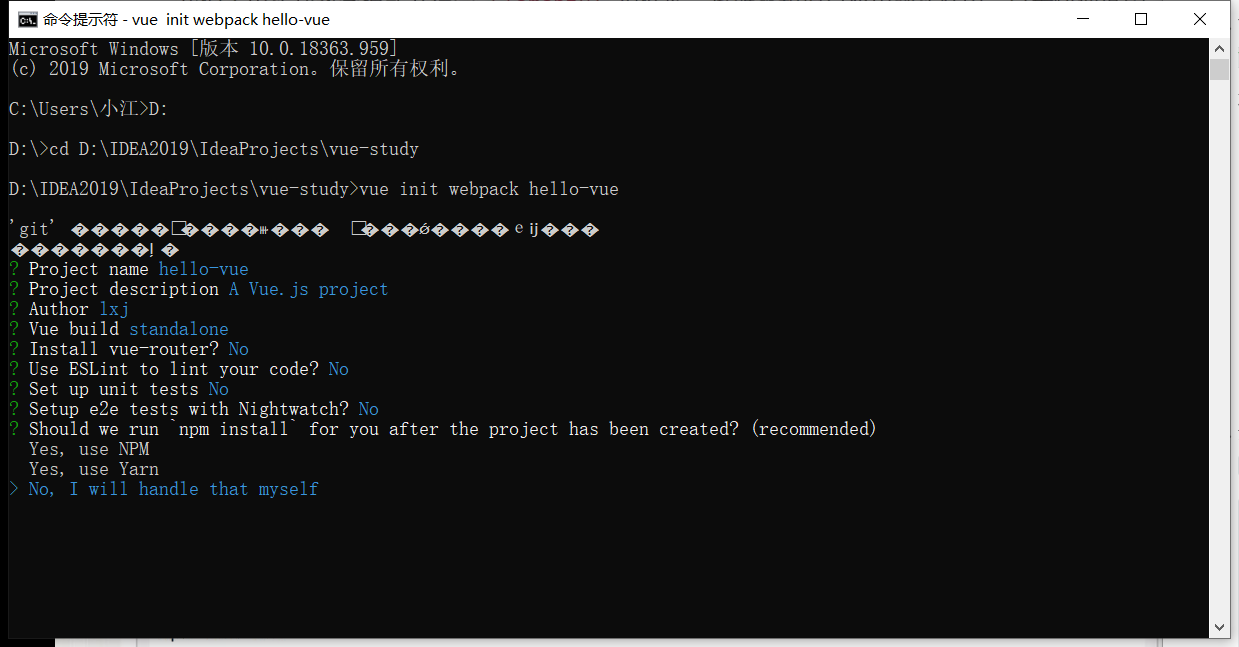
安装依赖,我们需要安装
vue-router、element-ui、sass-loader和node-sass四个插件# 进入工程目录 cd hello-vue # 安装vue-router npm install vue-router --save-dev # 安装element-ui npm i element-ui -S # 安装依赖 npm install # 安装SASS加载器 cnpm install sass-loader node-sass --save-dev # 启动测试 npm run dev按照上面顺序进行安装即可,如出现错误就进行修复

启动成功之后就可以了
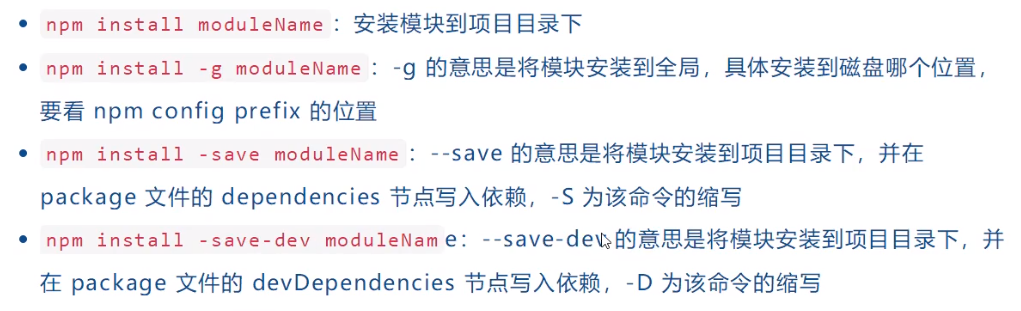
Npm命令的解释:
6.2、使用IDEA打开项目
因为我们已经安装好了element-ui,所以可以直接使用element-ui网站上的案例代码:https://element.eleme.cn/#/zh-CN/component/installation
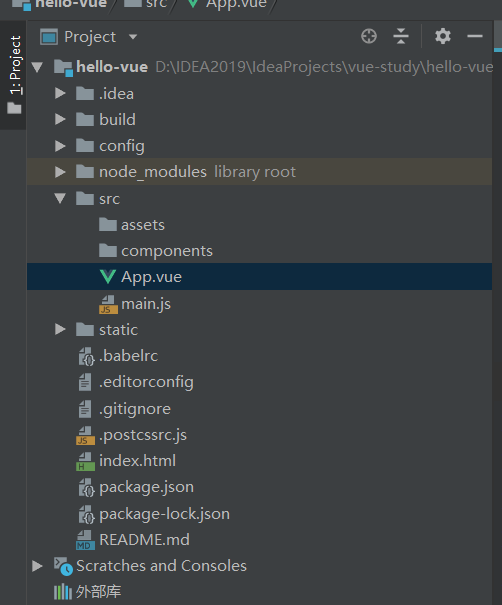
打开项目
清理项目,静态资源存放在static目录下
创建文件夹
router,views在
views目录下创建Login.vue将前端代码写在<template>中,而在<script>中需要添加name属性<template> <div style="display: flex; justify-content: center"> <el-form :model="ruleForm" status-icon :rules="rules" ref="ruleForm" label-width="100px" class="demo-ruleForm"> <el-form-item label="密码" prop="pass"> <el-input type="password" v-model="ruleForm.pass" autocomplete="off"></el-input> </el-form-item> <el-form-item label="确认密码" prop="checkPass"> <el-input type="password" v-model="ruleForm.checkPass" autocomplete="off"></el-input> </el-form-item> <el-form-item label="年龄" prop="age"> <el-input v-model.number="ruleForm.age"></el-input> </el-form-item> <el-form-item> <el-button type="primary" @click="submitForm('ruleForm')">提交</el-button> <el-button @click="resetForm('ruleForm')">重置</el-button> </el-form-item> </el-form> </div> </template> <script> export default { name: "Login", data() { var checkAge = (rule, value, callback) => { if (!value) { return callback(new Error('年龄不能为空')); } setTimeout(() => { if (!Number.isInteger(value)) { callback(new Error('请输入数字值')); } else { if (value < 18) { callback(new Error('必须年满18岁')); } else { callback(); } } } , 1000); } ; var validatePass = (rule, value, callback) => { if (value === '') { callback(new Error('请输入密码')); } else { if (this.ruleForm.checkPass !== '') { this.$refs.ruleForm.validateField('checkPass'); } callback(); } } ; var validatePass2 = (rule, value, callback) => { if (value === '') { callback(new Error('请再次输入密码')); } else if (value !== this.ruleForm.pass) { callback(new Error('两次输入密码不一致!')); } else { callback(); } } ; return { ruleForm: { pass: '', checkPass: '', age: '' } , rules: { pass: [ { validator: validatePass, trigger: 'blur' } ], checkPass: [ { validator: validatePass2, trigger: 'blur' } ], age: [ { validator: checkAge, trigger: 'blur' } ] } } ; } , methods: { submitForm(formName) { this.$refs[formName].validate((valid) => { if (valid) { // 设置跳转 this.$router.push("/main"); alert('submit!'); } else { console.log('error submit!!'); return false; } } ); } , resetForm(formName) { this.$refs[formName].resetFields(); } } } </script> <style scoped > </style>在路由目录下创建
index.jsimport Vue from "vue" import Router from "vue-router" // 导入组件 import Main from "../views/Main" import Login from "../views/Login" //使用路由 Vue.use(Router); export default new Router({ routes:[ { path: '/login', component: Login } ,{ path: '/Main', component: Main } ] } );配置main.js
import Vue from 'vue'
import App from './App'

import router from "./router"
import ElementUI from 'element-ui';
import 'element-ui/lib/theme-chalk/index.css';

//显示的使用
Vue.use(router);
Vue.use(ElementUI);

new Vue({
  el: '#app',
  router,
  // 配置ElementUI
  render: h => h(App)
} )
修改App.vue
<template>
  <div id="app">
    <router-view></router-view>
  </div>
</template>

<script>
export default {
  name: 'App'
}
</script>
启动Vue
npm run dev如果报错需要修改sass的版本,改为7.3.1(在
package.json中修改),修改之后需要在进行npm install安装测试
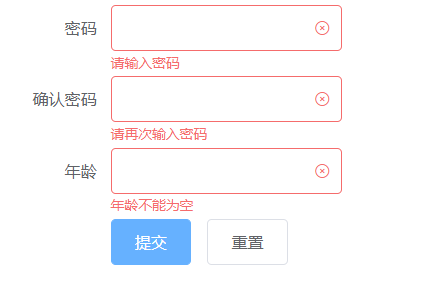
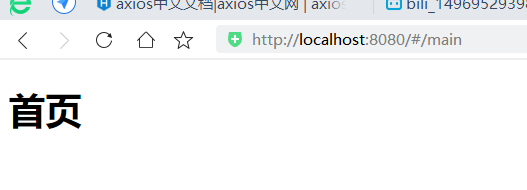
提交成功之后进行跳转:使用this.$router.push("/main");获取路由器并跳转
6.3、嵌套路由children:[]
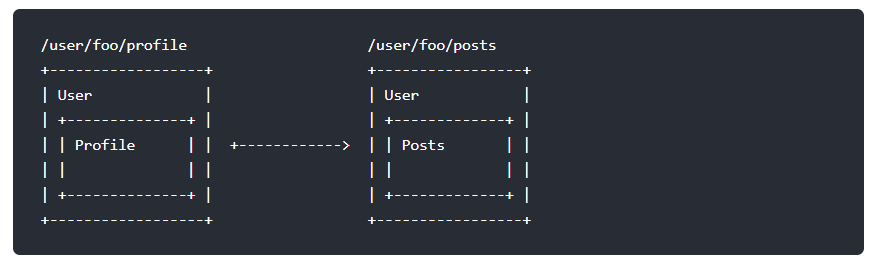
真正的应用程序用户界面通常由嵌套在多个级别的组件组成。URL的段对应于嵌套组件的某种结构也是很常见的,例如:
打开
hello-vue项目,在views中创建一个user文件夹在
user下创建List.vue和Profile.vue,写上个人列表和个人信息即可然后在
index.js中导入路由import Vue from "vue" import Router from "vue-router" // 导入组件 import Main from "../views/Main" import Login from "../views/Login" //导入新路由 import userList from "../views/user/List" import userProfile from "../views/user/Profile" //使用路由 Vue.use(Router); export default new Router({ routes:[ { path: '/login', component: Login } ,{ path: '/main', component: Main, // 在首页下面嵌套路由 children: [ // 路径依然为/user/userList,但是会在main的基础上显示 { path: '/user/userList', component: userList} , { path: '/user/userProfile', component: userProfile} ] } ] } );修改
main.vue,增加侧边栏(导入模板需要加在<div>标签中)在侧边栏中添加按钮
<router-link to="/user/userList">用户列表</router-link>设置显示内容的位置
<el-main>
    <router-view></router-view>
</el-main>
<template>
  <div>
    <el-container style="height: 100%; border: 1px solid #eee">
      <el-aside width="200px" style="background-color: rgb(238, 241, 246)">
        <el-menu :default-openeds="['1', '3']">
          <el-submenu index="1">
            <template slot="title"><i class="el-icon-message"></i>导航一</template>
            <el-menu-item-group>
              <template slot="title">分组一</template>
              <el-menu-item index="1-1">
                <router-link to="/user/userList">用户列表</router-link>
              </el-menu-item>
              <el-menu-item index="1-2">
                <router-link to="/user/userProfile">用户信息</router-link>
              </el-menu-item>
            </el-menu-item-group>
          </el-submenu>
          <el-submenu index="2">
            <template slot="title"><i class="el-icon-menu"></i>导航二</template>
            <el-menu-item-group>
              <template slot="title">分组一</template>
              <el-menu-item index="2-1">选项1</el-menu-item>
              <el-menu-item index="2-2">选项2</el-menu-item>
            </el-menu-item-group>
            <el-menu-item-group title="分组2">
              <el-menu-item index="2-3">选项3</el-menu-item>
            </el-menu-item-group>
            <el-submenu index="2-4">
              <template slot="title">选项4</template>
              <el-menu-item index="2-4-1">选项4-1</el-menu-item>
            </el-submenu>
          </el-submenu>
          <el-submenu index="3">
            <template slot="title"><i class="el-icon-setting"></i>导航三</template>
            <el-menu-item-group>
              <template slot="title">分组一</template>
              <el-menu-item index="3-1">选项1</el-menu-item>
              <el-menu-item index="3-2">选项2</el-menu-item>
            </el-menu-item-group>
            <el-menu-item-group title="分组2">
              <el-menu-item index="3-3">选项3</el-menu-item>
            </el-menu-item-group>
            <el-submenu index="3-4">
              <template slot="title">选项4</template>
              <el-menu-item index="3-4-1">选项4-1</el-menu-item>
            </el-submenu>
          </el-submenu>
        </el-menu>
      </el-aside>

      <el-container>
        <el-header style="text-align: right; font-size: 12px">
          <el-dropdown>
            <i class="el-icon-setting" style="margin-right: 15px"></i>
            <el-dropdown-menu slot="dropdown">
              <el-dropdown-item>查看</el-dropdown-item>
              <el-dropdown-item>新增</el-dropdown-item>
              <el-dropdown-item>删除</el-dropdown-item>
            </el-dropdown-menu>
          </el-dropdown>
          <span>卢晓江</span>
        </el-header>

        <el-main>
          <router-view></router-view>
        </el-main>
      </el-container>
    </el-container>
  </div>
</template>

<script>
  export default {
    name: 'main',
    data() {
      return {
        tableData: Array(20).fill(item)
      }
    }
  } ;
</script>
<style>
  .el-header {
    background-color: #B3C0D1;
    color: #333;
    line-height: 60px;
  }

  .el-aside {
    color: #333;
  }
</style>
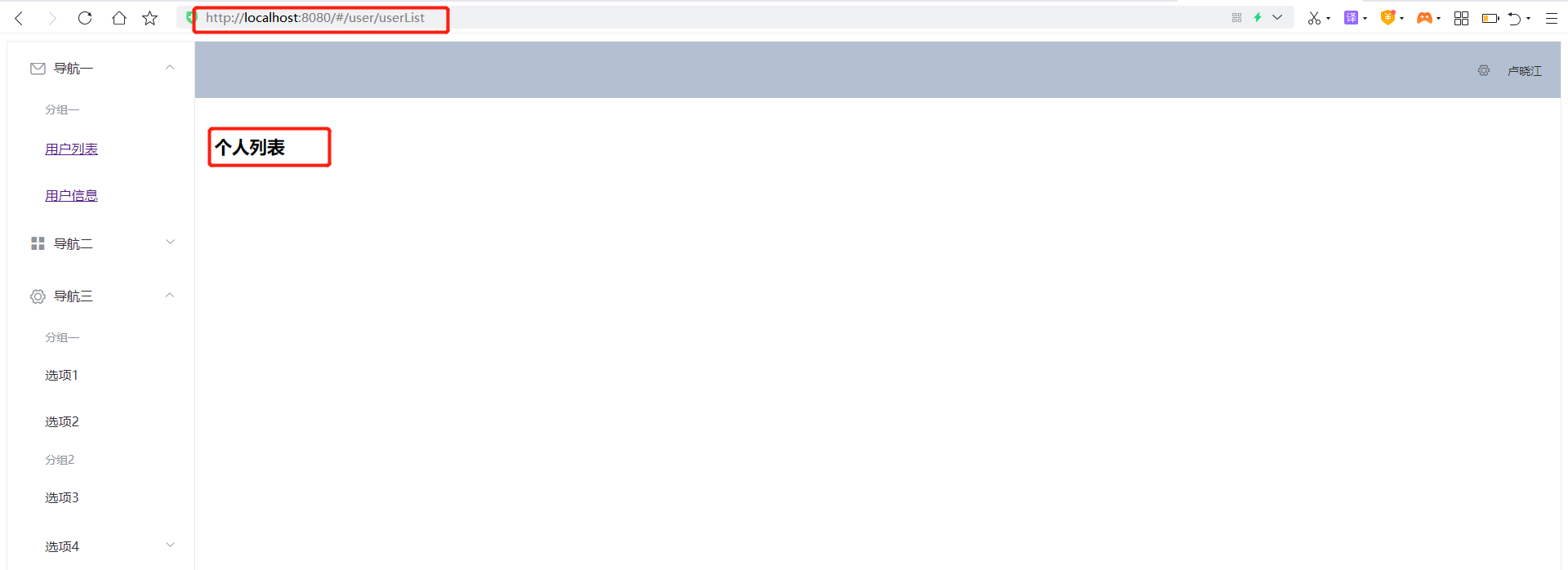
效果展示:
点击标签就会在指定位置显示内容,这就是路由的作用
6.4、接收参数
在链接中增加参数,并修改路由和显示页面
1、方法一
在路由链接添加参数对象(
to需要进行绑定)<router-link :to="{ name: 'userList', params: { id: 1} } ">用户列表</router-link>修改
index.js页面,修改对应路径{ path: '/user/userList/:id', name: 'userList', component: userList }在模块页面进行获取显示(需要在标签中获取,不然报错)
<template>
    <div>
        <h1>个人列表</h1>
        { { $route.params.id} }
    </div>
</template>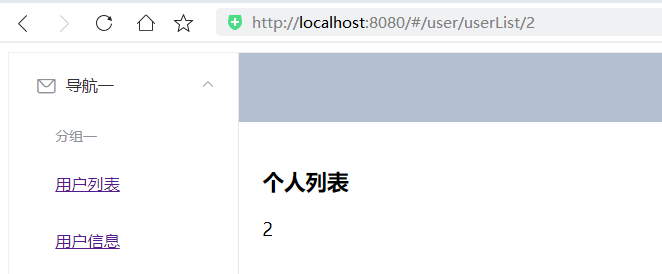
2、方法二
第一步还是一样不需要修改
修改
index.js页面,修改对应路径和props{ path: '/user/userList/:id', name: 'userList', component: userList, props: true }在模块页面进行获取显示(需要在标签中获取,不然报错),使用
props获取参数<template> <div> <h1>个人列表</h1> { { id} } </div> </template> <script> export default { props: ['id'], name: "userList" } </script>效果相同
6.5、登录和去除‘#’
1、登录
- 在
login页面跳转的时候增加参数 - 在
index.js中修改路径 - 在
main.vue中接收显示参数
2、去除#
- 在
index.js页面中设置mode: 'history'
6.6、路由模式与404
1、路由模式有两种
- hash:路径带 # 符号,如:http://localhost/#/login
- history:路径不带# 符号,如:http://localhost/login
修改路由配置,代码如下:
export default new Router({
  mode: 'history',
  routes:[]
} );
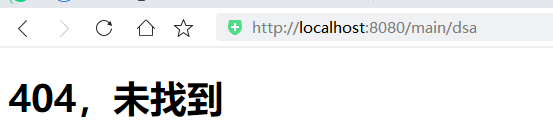
2、处理404
在
views中创建一个NotFound.vue页面<template> <h1>404,未找到</h1> </template> <script> export default { name: "NotFound" } </script>导入路由,设置路径为
*
3、路由钩子
beforeRouteEnter:在进入路由前执行
beforeRouteLeave:在离开路由前执行
<script>
  export default {
    props: ['id'],
    name: "userList",
    // :()=>{ }  相当于 :function(){ }
    beforeRouteEnter:(to, from, next)=>{
      console.log("进入路由前");
      // 放行
      next();
    } ,
    beforeRouteLeave:(to, from, next)=>{
      console.log("离开路由前");
      //  放行
      next();
    }
  }
</script>
离开路由的时候才显示beforeRouteLeave的内容
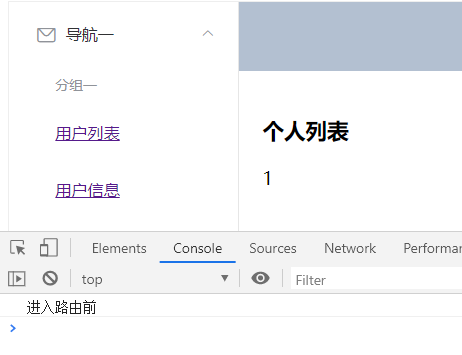
参数说明:
- to:路由将要跳转的路径信息
- from:路径跳转前的路径信息
- next:路由的控制参数
- next():跳入下一个页面
- next(‘/path’):改变路由的跳转方向,使其跳到另一个路由
- next(false):返回原来的页面
- next((vm)=>{}):仅在beforeRouteEnter中可用,vn使组件的实例
4、在钩子函数中使用异步请求
安装Axios
npm install --save axios vue-axios在
index.js引用Axiosimport axios from 'axios' import VueAxios from 'vue-axios' Vue.use(VueAxios, axios);在
static目录下创建一个mock文件夹,并创建一个data.json{ "name": "卢晓江", "age": 20, "address": "潮州" }只有放在
static目录下才可以找到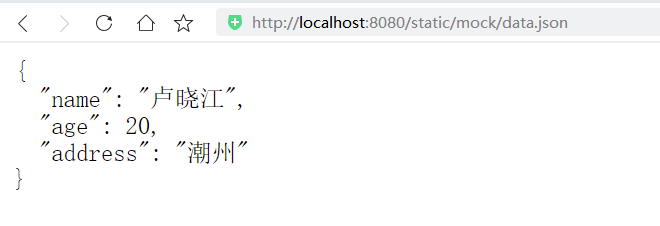
在
List.vue中使用<script> export default { props: ['id'], name: "userList", methods:{ getData: function () { /* 与下面的作用一样 this.axios.get("/static/mock/data.json").then(function (response) { console.log(response); this.data.user = response; } )*/ this.axios({ method: 'get', url:"/static/mock/data.json" } ).then(function (response) { console.log(response); } ) } } , // :()=>{ } 相当于 :function(){ } beforeRouteEnter:(to, from, next)=>{ console.log("进入路由前"); // 放行 next(vm => { // 执行getData方法 vm.getData(); } ); } , beforeRouteLeave:(to, from, next)=>{ console.log("离开路由前"); // 放行 next(); } } </script>获取成功
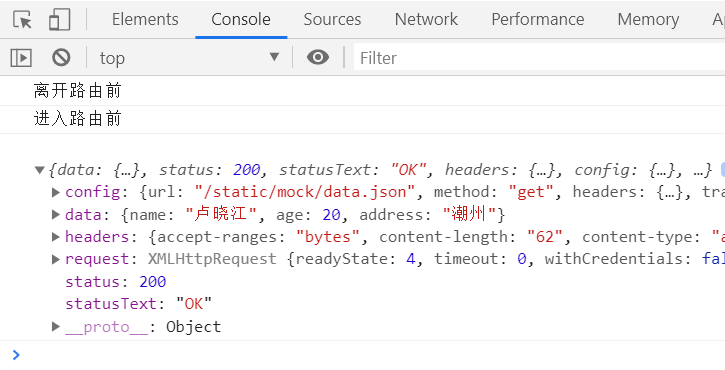
6.7、获取Axios异步请求的数据
在
List.vue中设置data()函数data(){ return{ user:{ // 属性名称必须与json中的一直,但不需要全写 name: null, age: null, address: null } } } ,修改
axios方法methods:{ getData: function () { this.axios({ method: 'get', url:"/static/mock/data.json" } ).then(response =>{ this.user = response.data } ) } } ,设置值的时候必须使用箭头函数
response =>{ this.user = response.data} ),不然会报错:因为在我们加载对象的时候,用的是异步模式,即使promise立刻被处理返回,但是浏览器在开始加载对象的时候,这个对象还是没有定义,所以也就读不到属性

最后就可以展示属性值了
<template>
    <div>
        <h1>个人列表</h1>
        { { id} }
        { { user.name} }
    </div>
</template>
- 本文链接:https://lxjblog.gitee.io/2020/08/02/Vue-cli/
- 版权声明:本博客所有文章除特别声明外,均默认采用 许可协议。